

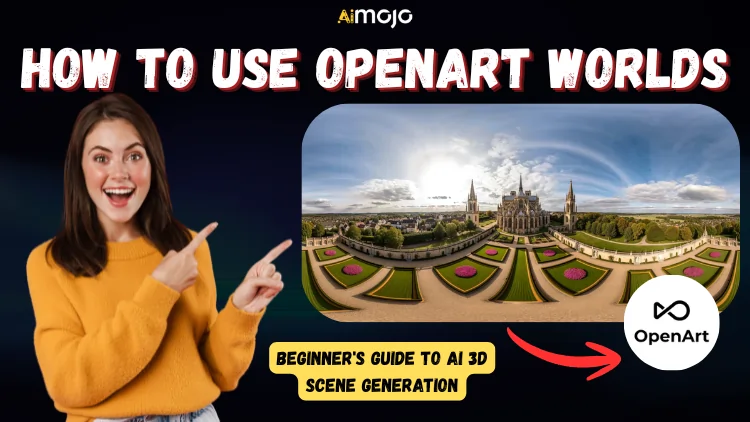
OpenArt just changed the AI image game — and “image” barely covers it anymore. OpenArt Worlds takes your prompt or photo and builds a full 3D environment you can actually walk through, look around, and export. No 3D software. No design degree. No complicated workflow.
Just you, a prompt, and a navigable world on the other side. This guide covers every step, every setting, and every fix you need to hit the ground running.
What Is OpenArt Worlds? (And Why It's Different From Regular AI Image Tools)
Most AI art tools give you a flat image. OpenArt Worlds gives you a space. You generate a 3D scene from a text prompt or an uploaded image, then move through it, frame shots from inside it, and save it as a persistent environment you can return to later.

OpenArt Worlds is an AI-powered 3D scene generation tool inside the OpenArt Suite that converts text prompts or images into fully navigable virtual environments — no 3D modeling experience needed.
Worlds sits inside the broader OpenArt Suite alongside standard image generation, video tools, and a canvas editor. Think of it as the spatial layer on top of everything else.
It's built for content creators, game developers doing mood boards, digital artists building concept backgrounds, and social media creators who want visuals nobody else has. If you've been relying on flat AI-generated images, this is the natural next step.

🎉 OpenArt Worlds – Limited-Time Deal Exclusive
What You Can Create With OpenArt Worlds
| Feature | What It Does | Best Use Case |
|---|---|---|
| Text-to-3D Scene | Builds a world from a written prompt | Concept art, mood boards |
| Image-to-3D World | Converts any photo into a navigable scene | Product shoots, architecture |
| In-World Screenshots | Capture frames from inside the environment | Social content, thumbnails |
| Persistent Worlds | Save and revisit your generated space anytime | Long-term projects, series content |
How to Access OpenArt Worlds — Free vs Paid
The free plan gives you limited credits to test the Worlds feature, but generation capacity is capped. For regular use, a paid plan makes more sense.
| Plan | Worlds Access | Monthly Credits | Price |
|---|---|---|---|
| Free | Limited | ~50 credits | $0 |
| Starter | Full | 300 credits | ~$9/mo |
| Pro | Full + Priority | 1,100 credits | ~$22/mo |
| Unlimited | Full + Bulk | Unlimited | ~$99/mo |
Step-by-Step: How to Use OpenArt Worlds From Scratch
Step 1 — Create or Log Into Your OpenArt Account
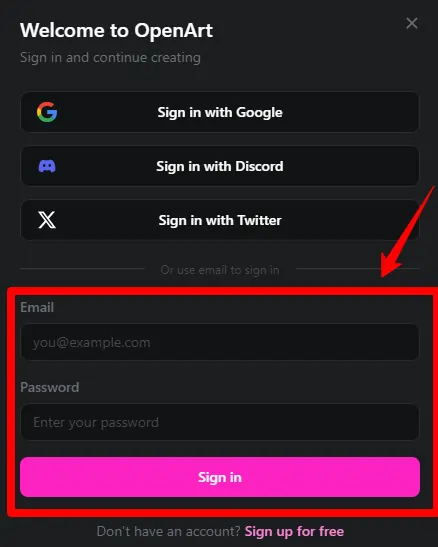
Go to openart.ai and sign up with Google or email. Existing accounts carry over credits automatically.
Step 2 — Navigate to the Worlds Tool Inside the Suite

From the dashboard, click Suite in the top nav, then select Worlds. It's a separate module from the standard image generator.
Step 3 — Choose Your Input Method

Pick between a text prompt or an image upload. Text prompt works for original scenes. Image upload converts an existing photo or AI image into a 3D environment.
Step 4 — Write a Prompt That Actually Works

Keep prompts specific with depth cues — words like “foggy valley with layered mountain ridges” generate far better 3D depth than “nice landscape.” Add a style tag (cinematic, sci-fi, fantasy) at the end.
Step 5 — Set Scene Parameters
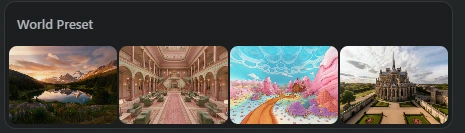
Adjust environment type (interior/exterior), style preset, and depth intensity before generating. Higher depth = more parallax in the final scene.
Step 6 — Generate and Wait
Processing takes 30–90 seconds depending on server load. The AI builds spatial layers, not just a flat render, so it needs a bit more time than standard image generation.
Step 7 — Explore Your World Using Navigation Controls

Use WASD keys or click-drag to move through the scene. Pan, tilt, and zoom are all supported inside the Worlds viewer.
Step 8 — Frame and Capture Screenshots Inside the Scene

Position your view exactly how you want it, then hit the capture button. This pulls a high-res still from inside the 3D environment.
Step 9 — Save Your World (Persistent Mode)
Click Save World to store your scene in your dashboard. You can reopen it, continue moving around, and capture new angles later.
Step 10 — Download or Export Your Final Output

Export as a high-res image (JPG/PNG) directly from the viewer. Video export (scene flythrough) is available on Pro and higher plans.
Best Settings for Different Use Cases
| Use Case | Recommended Style | Prompt Depth | Export Format |
|---|---|---|---|
| Social Media Content | Cinematic / Fantasy | High | PNG Screenshot |
| Game Dev Mood Board | Realistic / Sci-Fi | Medium-High | PNG + Video |
| Concept Art Backgrounds | Painterly / Stylized | Medium | PNG |
| Architecture Mockups | Photorealistic | High | PNG |
Prompt Writing Tips for OpenArt Worlds
Getting good 3D depth out of Worlds comes down to how you write the prompt. Use layered spatial language — foreground, midground, and background references push the AI to build actual dimensional depth rather than a flat painted look.
Portrait-mode photos with blurred backgrounds tend to produce weak depth on image uploads; high-contrast landscape shots with clear separation work best.
The style tags that consistently produce the strongest results: cinematic, photorealistic, dystopian, enchanted forest, neon-lit city interior, brutalist architecture, alien terrain.
5 Prompt Examples Worth Stealing
"Ancient stone temple deep in a jungle, misty, cinematic, photorealistic""Futuristic city street at night, neon signs, rain-soaked ground, sci-fi""Cozy cabin interior, warm fireplace, snow outside, soft lighting, realistic""Alien desert with twin moons, orange sky, massive rock formations, epic""Underwater city ruins, bioluminescent coral, deep ocean atmosphere"OpenArt Worlds vs Competitors — Quick Honest Take
| Tool | Free Plan | 3D Navigation | Image Input | Best For |
|---|---|---|---|---|
| OpenArt Worlds | Yes (limited) | Yes | Yes | Creators, content teams |
| World Labs | Waitlist | Yes | Yes | Research, high-end 3D |
| Blockade Labs Skybox | Yes | 360° only | Limited | VR, 360 backgrounds |
| Meta WorldGen | No (dev only) | Yes | No | VR app developers |
OpenArt Worlds is the most accessible option for general creators right now — especially with image-to-world input and persistent saving across all paid tiers.
Common Problems and How to Fix Them
World generation fails or gets stuck
→ Refresh and regenerate. Peak traffic hours slow the queue. Try a shorter, simpler prompt on first attempt.
Scene looks flat, not truly 3D
→ Add depth-specific words to your prompt (layered, distant horizon, foreground objects). Increase depth intensity in scene parameters.
Credits running out too fast
→ Save your worlds before exploring — re-entering a saved world doesn't cost credits. Only new generations do.
Export quality is lower than expected
→ Capture screenshots at maximum zoom-out inside the viewer before exporting for the sharpest output resolution.
💸 Exclusive OpenArt Worlds 20% Discount Exclusive
Frequently Asked Questions About OpenArt Worlds
Is OpenArt Worlds free to use?
Yes, with limits. The free plan includes a small credit allowance to test the feature, but consistent use requires a paid subscription.
What's the difference between Worlds and OpenArt's standard image generator?
The standard generator makes flat 2D images. Worlds creates navigable 3D spaces you can move through and shoot from multiple angles.
Can I use OpenArt Worlds for commercial projects?
Yes, on paid plans. Always confirm with the current terms on openart.ai as licensing terms can update.
How long does 3D world generation take?
Typically 30–90 seconds per scene, depending on complexity and server load.
Can I upload my own image to create a 3D world?
Yes. The image-to-world input accepts JPG and PNG uploads directly inside the Worlds tool.
What file formats can I export?
PNG and JPG for screenshots. Video flythrough export is available on Pro and above.
Final Thoughts — Is OpenArt Worlds Worth Your Time?
Short answer: yes, especially if you create visual content at volume. The prompt-to-3D-environment pipeline is faster than anything that previously required Blender, Unreal, or a separate 360° tool. Content creators get unique visuals nobody else has. Game developers get instant mood board assets. Digital artists get backgrounds built in under two minutes.
⚡ Already using OpenArt? Upgrade to Wonder — 50% off yearly plans + unlimited generation on the latest model.
If you're on the free plan just testing the waters, start with one detailed cinematic prompt before upgrading. The quality gap between a basic prompt and a well-structured one is significant — run through the prompt tips section above before burning credits on generic inputs.
AiMojo Recommends:


 BONUS: Get our $200 “AI Mastery Toolkit” FREE when you sign up!