


Somewhere on your computer, there's a spreadsheet full of data you've been completely ignoring. You know it holds answers — about your customers, your revenue, your campaigns — but you don't have the time, budget, or patience to hire someone with “data scientist” in their LinkedIn bio.
Here's the reality: AI for data analysis has made that expensive hire optional. You don't need Python, SQL, or a statistics degree. You just need the right tools, the right prompts, and a repeatable process that doesn't eat your entire Tuesday. This guide covers exactly that — from tool picks to real prompts to a step-by-step workflow you can run today.
What AI Data Analysis Actually Means (In Plain English)

The Old Way vs. The AI Way — What Changed and What Didn't
Old way: You export a CSV, open it in Excel, squint at 4,000 rows, and either give up or pay someone $200/hour to make it make sense. AI way: You upload that same CSV, type a plain-English question, and get a structured breakdown in under 60 seconds. The data didn't change. The access did.
What's Happening Behind the Scenes When AI Reads Your Data
AI tools use natural language processing to read your data the way a human analyst would — but faster and without the invoice. They identify patterns, flag anomalies, and surface trends based on whatever you ask them.
Why “I'm Not a Numbers Person” Is No Longer a Valid Excuse
Every tool covered here runs on plain-English queries. If you can write an email, you can run a data analysis.
The 7 Best AI Tools for Data Analysis That Require Zero Coding Skills
| Tool | Best For | Free Plan | Coding Required | Skill Level |
|---|---|---|---|---|
| camelAI | Conversational data queries | Yes | No | Beginner |
| Julius AI | CSV/spreadsheet analysis | Yes (limited) | No | Beginner |
| Power BI Copilot | Enterprise BI teams | No | No | Intermediate |
| Tableau Pulse | Automated insight delivery | No | No | Intermediate |
| ChatGPT / Claude | Quick summaries & cleaning | Yes | No | Beginner |
| Google Looker Studio | Free visual reporting | Yes | No | Beginner |
| Zoho Analytics (Zia) | Small business BI | Yes | No | Beginner |
How to Start Using AI for Data Analysis — A Step-by-Step Workflow
Step 1 — Prepare Your Data
Clean your file before anything else. Remove duplicate rows, fill blank cells with “N/A,” and make sure every column header is clear and consistent. CSV or XLSX files work best across most AI tools.
Step 2 — Pick the Right Tool Based on Your Goal
Need a quick summary? Use ChatGPT. Need recurring dashboards? Go with Power BI or Looker Studio. Need deep CSV analysis with conversational follow-ups? Julius AI or camelAI.
Step 3 — Write Prompts That Get Real Answers
Bad prompt: “Analyze my data.”
Good prompt: “Which product had the highest return rate in Q1 and what's the month-over-month trend for the last 6 months?”
Specificity is everything.
Step 4 — Read and Cross-Check AI Outputs
AI gets things wrong. Always sanity-check key numbers against your raw data — especially before sharing with a client or stakeholder.
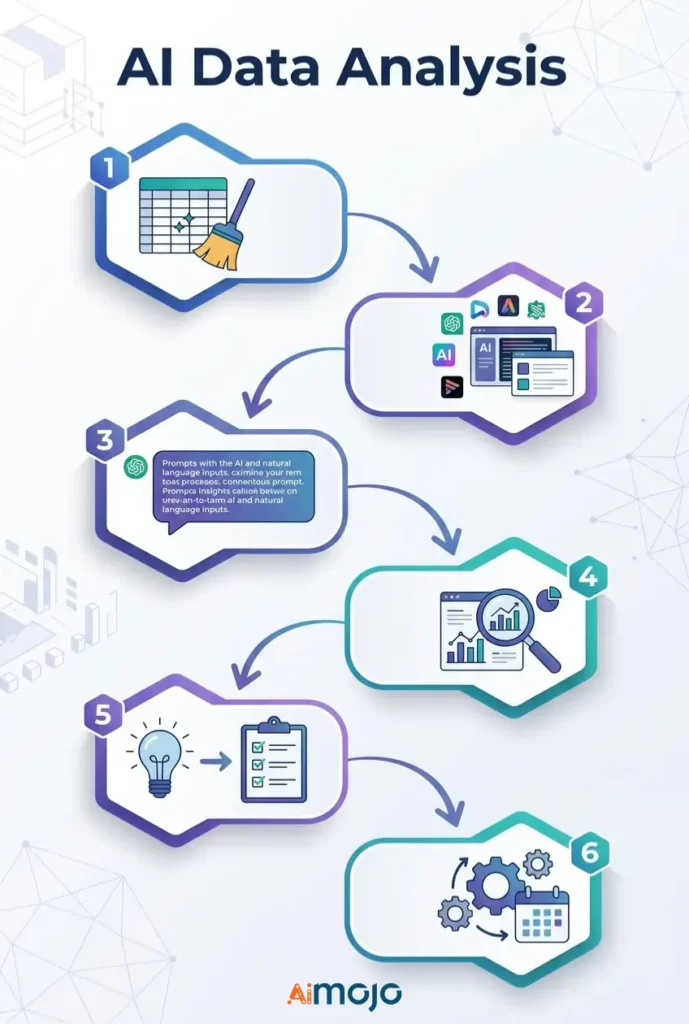
Step 5 — Move From Insights to Decisions
An insight with no action attached to it is just trivia. For every AI finding, ask: “What do I actually do with this?”
Step 6 — Automate Recurring Reports
Set up scheduled data refreshes inside Looker Studio, Power BI, or Zoho Analytics so weekly reporting runs without you touching it.
Copy-Paste AI Prompts That Non-Technical Users Are Running Right Now
Use these directly in Julius AI, camelAI, or ChatGPT with your dataset attached:
Sales Data
*"Show total revenue by product category for the last 90 days and flag any category with a decline over 20%."*Marketing Data
*"Which traffic source drove the most conversions last month? Break down average cost per conversion by channel."*Financial Spreadsheets
*"Identify the top 5 expense categories and highlight every month where spending exceeded budget by more than 15%."*Customer Behavior Data
*"What's the average purchase frequency per customer segment? Flag segments with the highest churn risk."*HR & Team Metrics
*"Compare headcount changes by department over the last 6 months and flag any team with attrition above 10%."*5 Mistakes That Make Your AI Data Analysis Completely Useless
- Feeding messy, unformatted data — AI cannot fix a disaster spreadsheet. Garbage in, garbage out — every single time.
- Asking broad questions — “Tell me about my sales” gives you nothing useful. Be specific about the time period, metric, and the actual goal.
- Taking every output at face value — AI tools hallucinate. Cross-reference key numbers before making any real business decision.
- Using a general-purpose tool for specialized work — ChatGPT is solid for summaries, not for complex financial modeling. Match the tool to the task.
- Stopping at “interesting” — Most people get a cool chart and do nothing with it. Every AI-driven business insight needs a clear next action attached.
Who's Actually Using AI for Data Analysis Right Now
This isn't theory — real people are running no-code data analysis every single day:
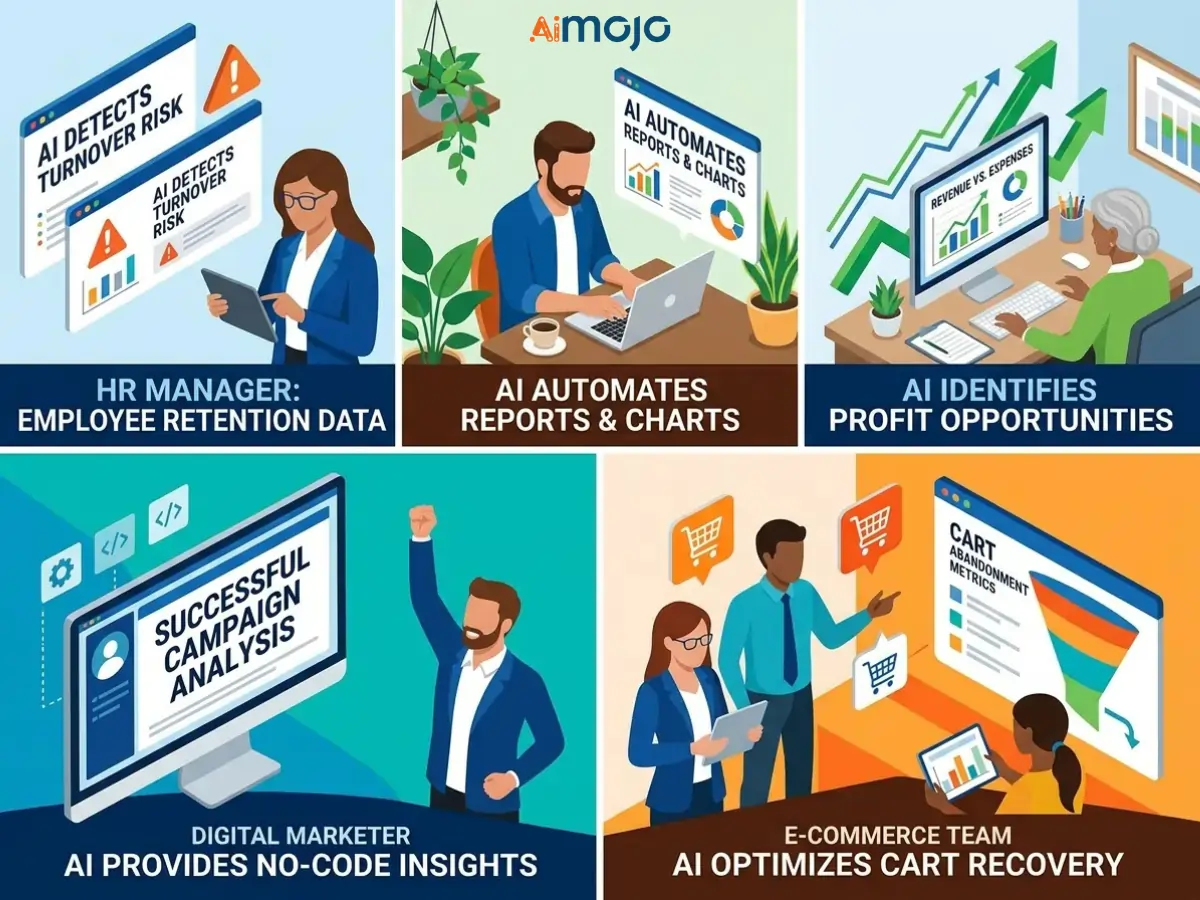
If your competitors are already doing this while you're still compiling reports manually, that gap is worth closing fast.
Free vs. Paid AI Data Analysis Tools
What Free Tiers Can Realistically Do
Free plans on Google Looker Studio, camelAI, and Zoho Analytics handle basic reporting, simple trend tracking, and limited file uploads well. For solo users and small teams, they're genuinely usable — not just demos.
The Features Worth Paying For at Scale
Paid tiers unlock automated data refresh schedules, larger upload limits, advanced AI models, API integrations, and multi-user collaboration. If you're running AI business analytics at scale or building client dashboards, the upgrade pays back quickly.
Hidden Costs That Sneak Up Post-Sign-Up
Watch for per-seat pricing, row-count overage fees, and “premium AI” features locked behind paywalls you only find after building your entire workflow inside the platform.
How to Present AI-Generated Data Insights So People Actually Listen

Turning AI Charts Into Stories That Actually Land
Raw charts don't persuade anyone in a meeting. Use the AI output as a starting point, then frame it with context: what happened, why it matters, and what comes next. That's data storytelling — and it's what gets people to act.
Building an Automated Dashboard for Weekly Reporting
Power BI, Looker Studio, and Zoho Analytics all let you build a live AI dashboard once, connect it to your data source, and never manually compile a weekly report again. Build it once, share the link forever.
The “So What?” Framework — Making Every Insight Boardroom-Ready
Before presenting any AI-generated insight, answer three fast questions:
Frequently Asked Questions
Can I do real data analysis with AI if I have zero technical background?
Yes. Tools like camelAI, Julius AI, and Zoho Analytics (Zia) are built specifically for non-technical users. You ask questions in plain English, and they return structured insights.
What is the best free AI tool for data analysis in 2026?
Google Looker Studio is the strongest free option for visual reporting. camelAI and Julius AI both offer solid free tiers for CSV and spreadsheet analysis.
How do I analyze Excel or Google Sheets data using AI?
Upload your file directly to Julius AI or camelAI, or connect your Google Sheet to Looker Studio or Zoho Analytics for ongoing automated analysis.
Is ChatGPT actually reliable for business data analysis?
For summarizing, cleaning, and explaining data — yes. For complex calculations or large datasets, pair it with a dedicated tool like Power BI Copilot or Julius AI.
What's the real difference between AI data analysis and traditional BI tools?
Traditional BI tools require you to build queries and know exactly what to look for. AI-powered analytics platforms surface insights proactively and respond to natural language — no setup required.
How accurate are AI-generated insights — should I trust them completely?
No. Always cross-check AI outputs against your raw data before using them in any business decision or client-facing presentation.
Do I need to know SQL or Python to use any of these tools?
Not for a single tool on this list. All of them support natural language data queries with zero programming required.
What types of data files work best with AI analysis tools?
CSV and XLSX files work with nearly every tool listed here. JSON and connected Google Sheets are also widely supported across platforms.
Where AI Data Analysis Is Headed Next (And What That Means for You)
The next wave of AI analytics tools won't wait for you to ask questions. Agentic AI data monitoring systems watch your metrics around the clock and alert you the moment something looks off — before it snowballs into a real problem.
Forecasting used to require a dedicated analyst. Now tools like Tableau Pulse and Power BI Copilot are pushing predictive analytics for business users into near-one-click territory.
Data scientists aren't disappearing — but the gap between what they can do and what an AI-equipped non-technical user can do keeps shrinking every single quarter. The sooner you get comfortable with these tools, the bigger your edge.
AiMojo Recommends:


 BONUS: Get our $200 “AI Mastery Toolkit” FREE when you sign up!