

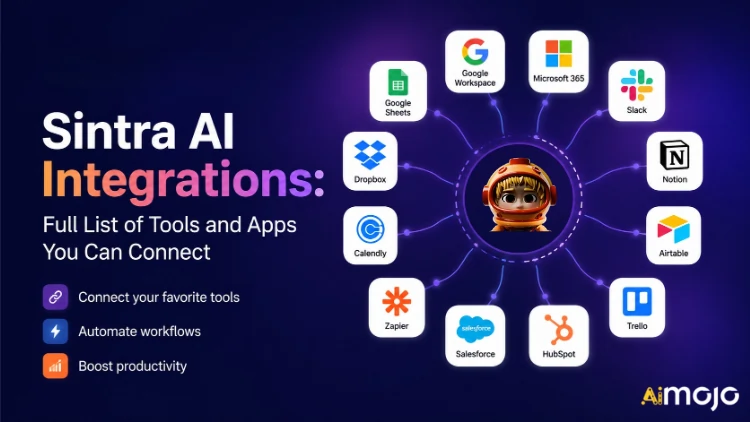
Every tool your business runs on — Gmail, Notion, LinkedIn, Google Analytics, QuickBooks, and 1,000+ more — can now plug directly into Sintra AI.
Here's the complete breakdown of what connects, how it works, and what your AI helpers actually do once you flip the switch.
What “Integrations” Actually Means in Sintra
Sintra integrations are not third-party plugins you bolt on manually. They are built-in, one-click connectors baked directly into the platform — no webhooks, no developer tickets, no Zapier middleware required (though Zapier support does exist for extending even further).
Once connected, your Sintra AI helpers get direct read/write access to those tools. That means they don't just “see” the data — they act on it. Draft and send an email in Gmail. Post to LinkedIn. Pull a Google Analytics report. Create a Notion page. All triggered from inside one chat window.
The integration layer is powered by Composio, which is what lets Sintra hit the 1,000+ integrations mark across every major business category.

The Full Sintra AI Integrations List (By Category)
Here's a structured rundown of every category and tool currently supported:
| Tool | What Your Helper Can Do |
|---|---|
| Gmail | Send emails, reply to threads, read inbox, run outreach campaigns |
| Microsoft Outlook | Send, reply, read — full inbox management for Microsoft users |
📅 Calendar & Scheduling
| Tool | What Your Helper Can Do |
|---|---|
| Google Calendar | Create events, read schedule, set reminders, plan content calendar |
| MS Calendar | Same calendar capabilities for Microsoft 365 users |
🗂️ File Storage
| Tool | What Your Helper Can Do |
|---|---|
| Google Drive | Save reports, pull files, store AI-generated outputs automatically |
| Dropbox | File storage and retrieval for Dropbox-based workflows |
📱 Social Media
| Tool | What Your Helper Can Do |
|---|---|
| LinkedIn (Personal) | Schedule posts, publish content, manage profile activity |
| LinkedIn (Company Page) | Manage page posts, grow company presence |
| Publish posts, view page insights, manage page content | |
| Post to feed (via Facebook Business link), manage content | |
| TikTok | Publish and schedule short-form video content |
| YouTube | Manage video uploads and channel content |
💬 Team Communication
| Tool | What Your Helper Can Do |
|---|---|
| Slack | Send messages, post to channels, automate team notifications |
| Microsoft Teams | Collaborate and communicate across Microsoft-based teams |
✅ Productivity & Project Management
| Tool | What Your Helper Can Do |
|---|---|
| Notion | Create pages, update databases, organize projects |
| Trello | Manage boards, cards, and task lists |
| Asana | Create tasks, track project progress |
| Google Tasks | Add and manage tasks inside Google Workspace |
| Todoist | Task creation and to-do list management |
| Linear | Engineering and product team task tracking |
| Airtable | Database management and project tracking |
💼 CRM & Sales
| Tool | What Your Helper Can Do |
|---|---|
| HubSpot | Manage contacts, track deals, update CRM entries |
| Salesforce | CRM updates, lead tracking, sales pipeline management |
| Pipedrive | Deal management and sales workflow automation |
📊 Analytics & Data
| Tool | What Your Helper Can Do |
|---|---|
| Google Analytics | Fetch traffic reports, surface insights, track performance |
| Google Sheets | Read and write spreadsheet data for reporting |
💰 Accounting & Finance
| Tool | What Your Helper Can Do |
|---|---|
| QuickBooks | Create/send invoices, read financials, generate reports |
| Xero | Accounting and bookkeeping automation |
🛠️ Developer Tools
| Tool | What Your Helper Can Do |
|---|---|
| GitHub | Manage repositories, track issues, automate dev workflows |
| GitLab | Code management and CI/CD pipeline interaction |
| Jira | Issue tracking and sprint management |
| Supabase | Database interaction and backend management |
🎨 Design & Creative
| Tool | What Your Helper Can Do |
|---|---|
| Figma | Access design files, reference assets in content workflows |
📣 Marketing & Advertising
| Tool | What Your Helper Can Do |
|---|---|
| SEMrush | Pull keyword data, track rankings, surface SEO opportunities |
| Meta Ads | Manage ad campaigns and ad account data |
🏃 Health & Fitness
| Tool | What Your Helper Can Do |
|---|---|
| Strava | Read activity data so your personal coach can track fitness goals and adjust your schedule |
🌐 CMS & E-Commerce
| Tool | What Your Helper Can Do |
|---|---|
| WordPress.com | Manage posts, pages, and content publishing |
| Webflow | Website and landing page management |
| Shopify | E-commerce product and order management |
How to Connect Any Integration in Sintra (3 Steps)
No setup headaches. The entire process takes under two minutes per tool:
- Go to Brain AI — Click the Brain AI button in your Sintra sidebar to open your integration hub
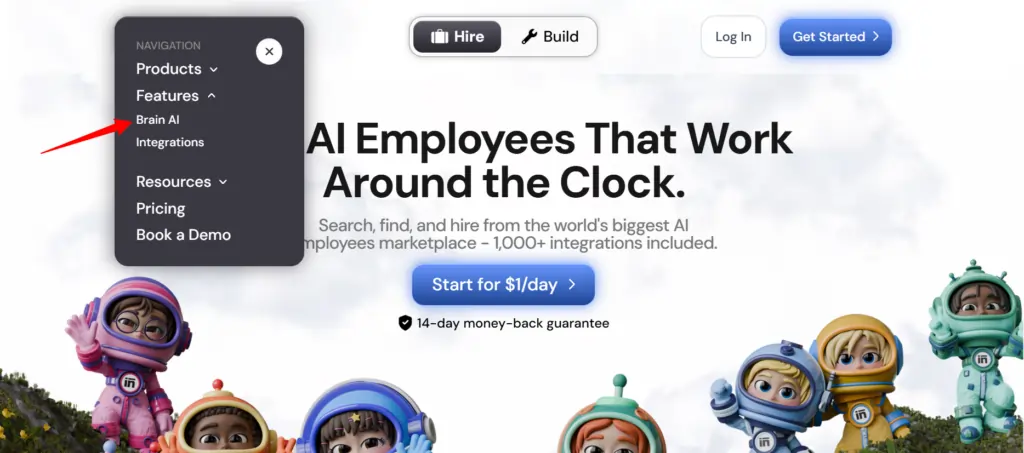
- Find the tool — Locate the integration you want (Gmail, Notion, LinkedIn, etc.) and click “Connect”
- Authorize the account — A popup window opens, log in and grant permissions — the Connect button flips to a green checkmark
That's it. From that point forward, the relevant helper (email marketer, data analyst, social media manager, etc.) works with live data from your actual account — no copy-pasting, no manual inputs.
💡 Quick tip: Need to add another account for the same tool (e.g., a second Facebook Page)? Hit “Connect” → “Add new account” inside Brain AI and log in with the second account directly from there.
What Your Sintra Helpers Actually Do With These Integrations
Sintra has 12 pre-built AI specialists, and each one is wired to the integrations that make sense for their role:
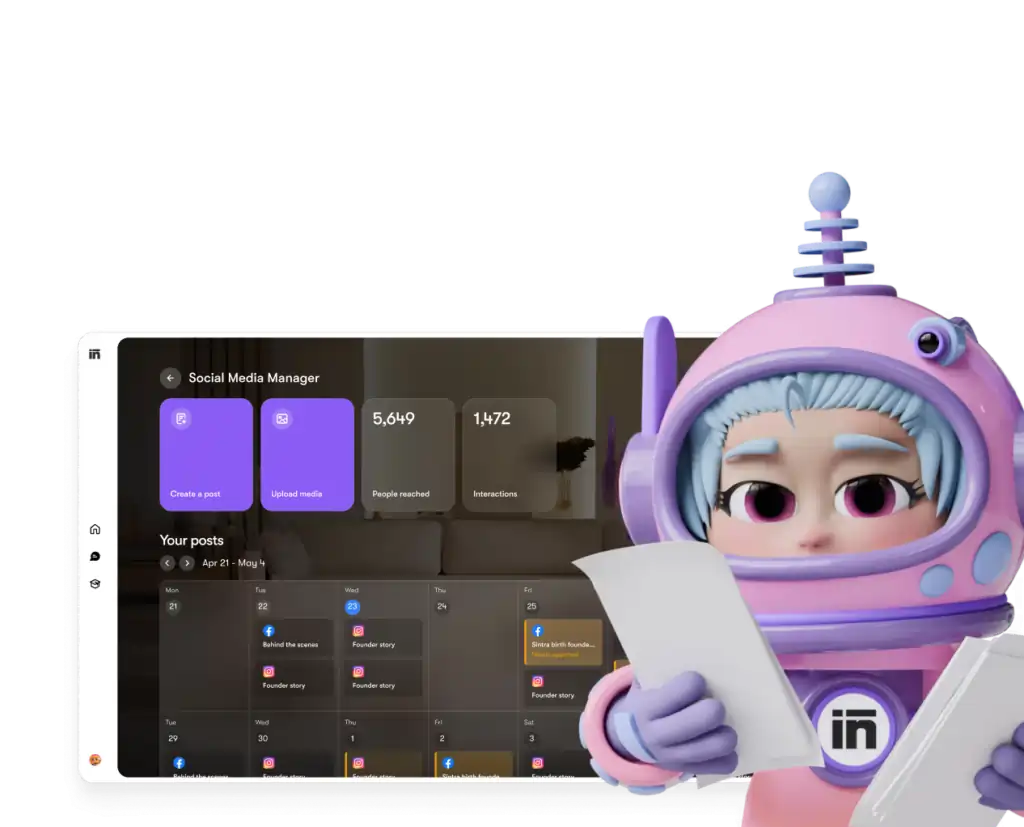
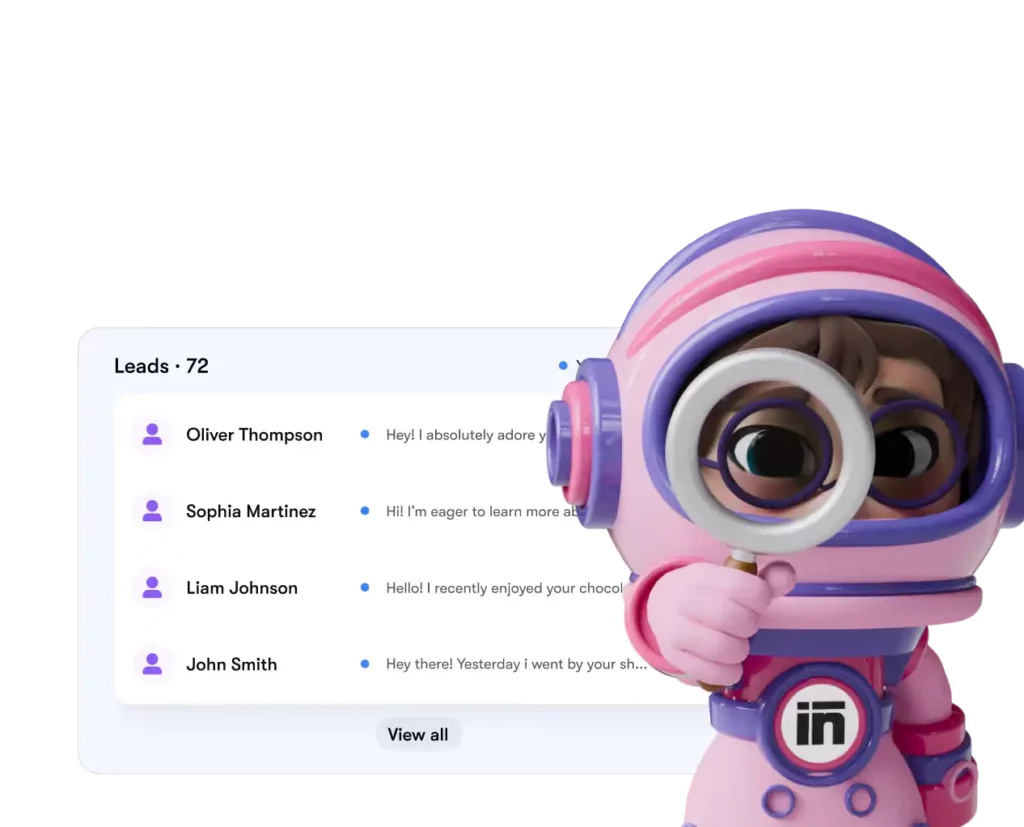
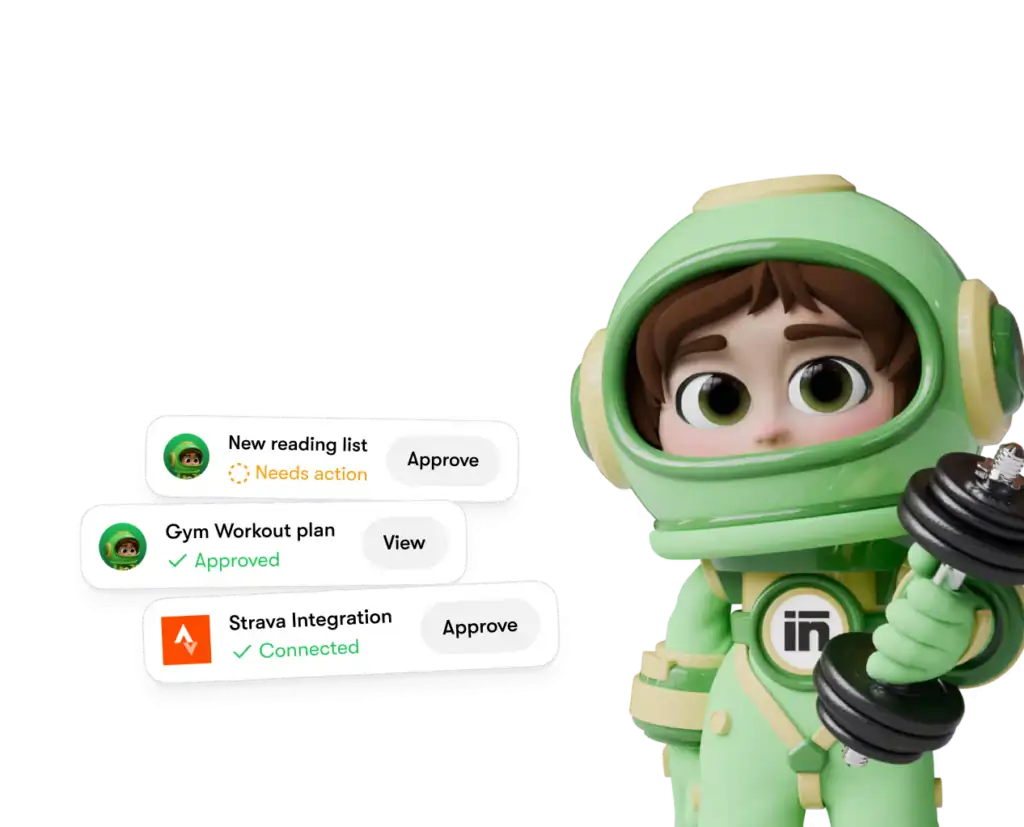
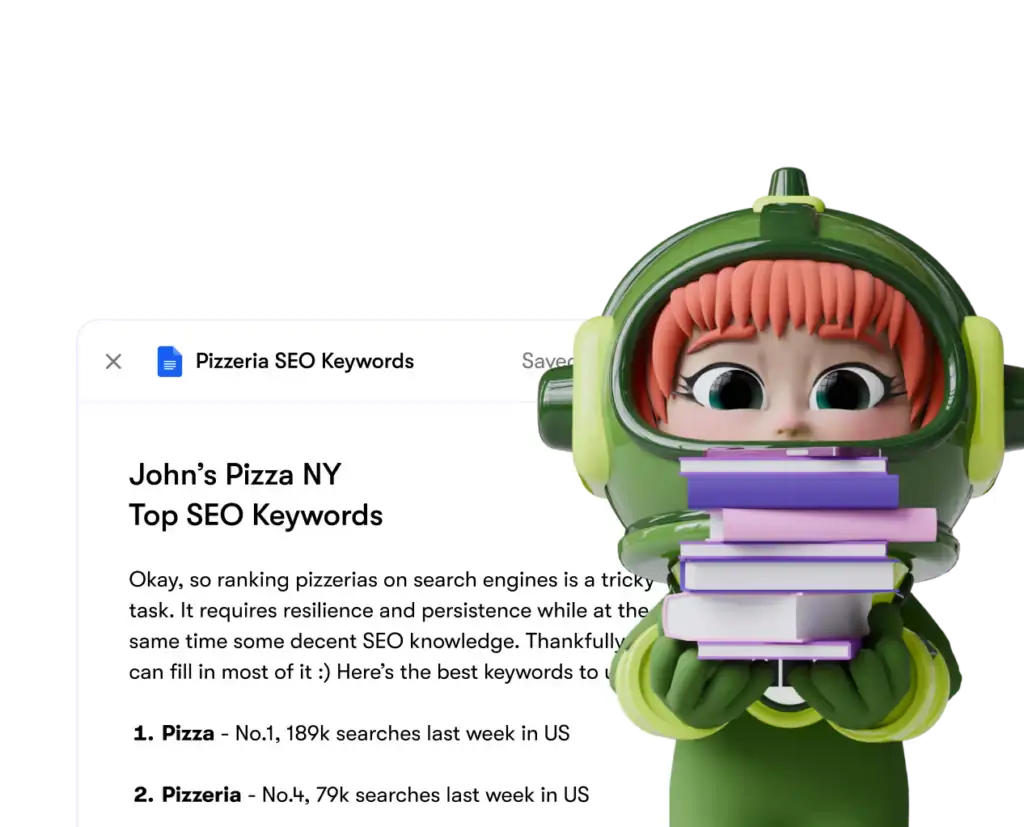
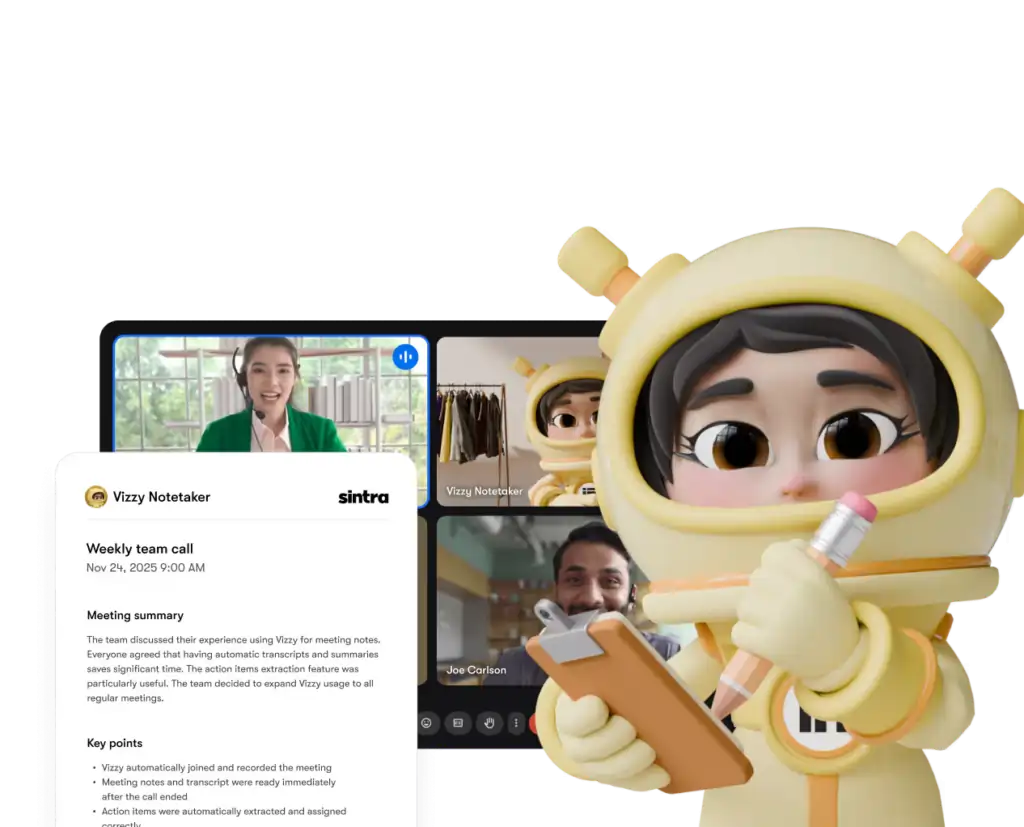
Each helper only accesses the tools and permissions you explicitly grant — and you can disconnect any integration from your dashboard at any time.
Sintra AI vs. Competitors: Integration Depth
Here's how Sintra's integration setup compares to similar platforms at the same price tier:
| Feature | Sintra AI | Generic AI Chatbots | Automation Platforms (e.g., Zapier) |
|---|---|---|---|
| Native integrations (no code) | 1,000+ | None to minimal | Yes, but no AI layer |
| AI helper acts on data | ✅ Yes | ❌ No | ❌ No |
| Setup complexity | One-click auth | N/A | Medium–High |
| Business-role-specific helpers | ✅ 12 specialists | ❌ | ❌ |
| Automation (recurring tasks) | ✅ | ❌ | ✅ |
| GDPR compliant | ✅ | Varies | Varies |
The key differentiator: platforms like Zapier give you connectors, but there's no intelligent layer on top interpreting and acting on the data. Sintra gives you both — the integration and an AI that knows what to do with it.
The 1,000+ Integrations Claim — What Does It Actually Mean?
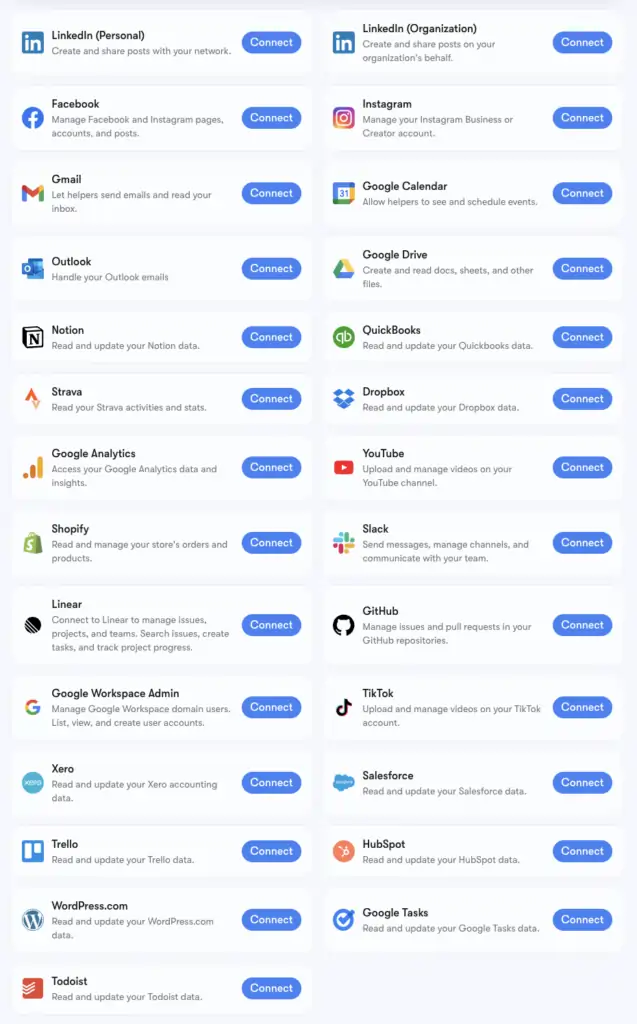
Sintra's 1,000+ integrations figure is powered by Composio, a connector infrastructure that supports apps across every category: HR tools, scheduling platforms, e-commerce, data warehouses, and niche SaaS tools most AI platforms don't touch.
You can browse the full extended list at composio.dev/toolkits. The core integrations with deep helper support (Gmail, LinkedIn, Notion, Google Analytics, etc.) are the ones built natively into Sintra's Brain AI. The extended 1,000+ are accessible for users who need to go deeper into specific workflows.
If a tool you rely on isn't listed, you can request it directly from your Sintra dashboard. New integrations get added based on user demand on a rolling basis.
Setting Up Gmail + Google Calendar: Step-by-Step
The Google Workspace stack is the most commonly connected group, so here's the exact process:
- Click Brain AI in the left sidebar
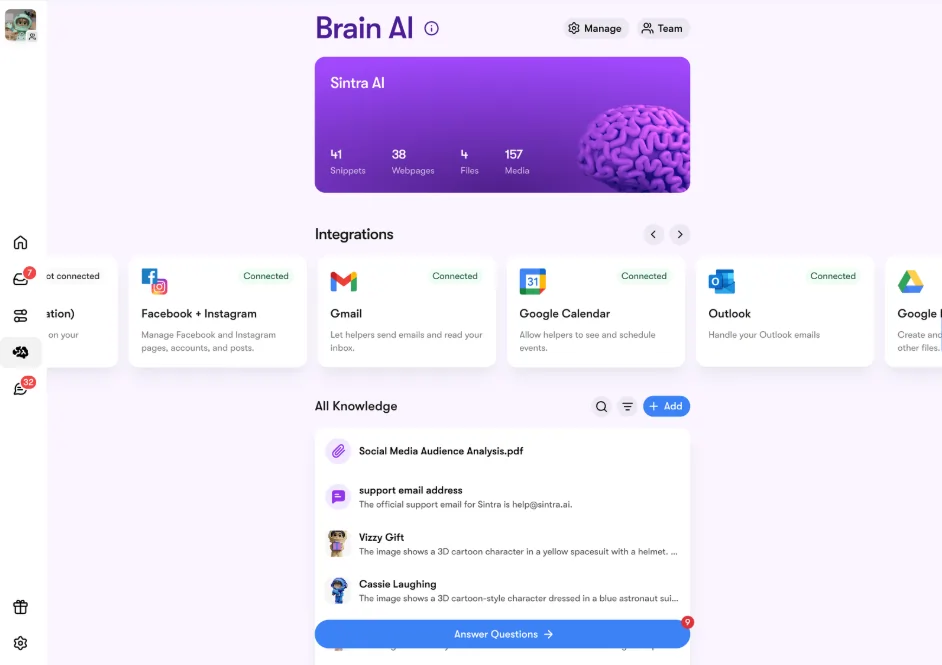
- Locate Gmail, Google Calendar, Google Drive, or Google Analytics in the Integrations section
- Click Connect → then Connect again (or Add new account for multiple accounts)
- A browser popup appears — select the Google account you want to use
- Grant Sintra App the requested permissions
- The button turns green — you're live
All four Google tools can be connected independently or together. Sintra only requests the permissions needed for each task (e.g., Calendar only needs read/write for events — not your entire Google account).
Setting Up Facebook & Instagram
This one has a small prerequisite — your Instagram must be linked to a Facebook Business Page first:
- Log into Facebook → click your profile photo → switch to your Business Page
- Go to Settings & Privacy → Settings → Permissions → Linked Accounts
- Click Instagram → Connect account and complete the link
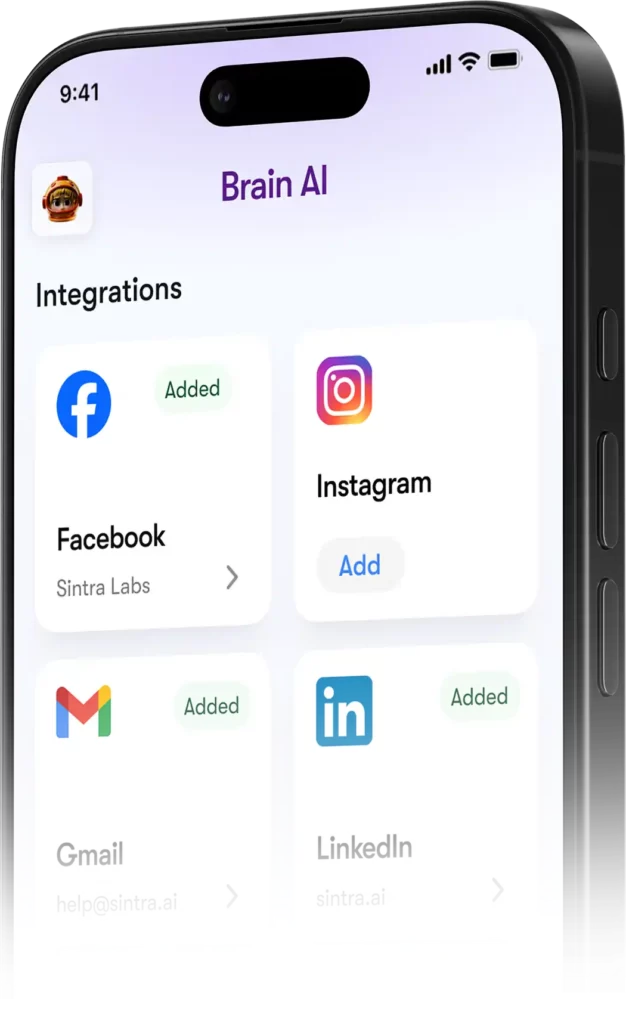
- In Sintra, go to Brain AI → Integrations → Facebook/Instagram → Connect
- Log in with your Facebook credentials and grant permissions
- Green checkmark = you're connected on both platforms
Once live, Soshie (your social media specialist) can post to both Facebook and Instagram directly from a chat message or via an automated schedule.
Privacy: What Sintra Can and Can't See
A reasonable question when connecting your Gmail or Google Analytics to any AI platform. Here's Sintra's actual stance:
Helpers do not act on your behalf unless you've explicitly asked them to via chat or set up a scheduled automation — they don't run in the background doing things you haven't approved.
Frequently Asked Questions
What tools are on the official Sintra AI integrations list?
Core integrations include Gmail, Outlook, Google Calendar, Google Drive, LinkedIn, Facebook, Instagram, TikTok, Slack, Notion, HubSpot, Salesforce, QuickBooks, Google Analytics, GitHub, Strava, Shopify, and more. The full extended list of 1,000+ tools is available at composio.dev/toolkits.
Does Sintra AI have a public API?
No — Sintra does not offer a public API. All integrations are ready-to-use connectors built directly into the platform via Composio.
Can I connect multiple accounts for the same tool?
Yes. Hit “Connect” → “Add new account” inside Brain AI to link additional accounts for the same platform. Each account is managed independently.
Do Sintra integrations work inside automations?
Yes — connected tools power recurring automations like daily inbox summaries, scheduled social posts, and weekly analytics reports. Helpers run these on autopilot without you having to initiate a chat.
Is there an integration for Strava?
Yes. Strava connects via Brain AI and lets your personal coach helper read your activity data to help track fitness goals alongside your work schedule.
How long does it take to set up a Sintra integration?
Under two minutes. The whole process is OAuth-based — click Connect, log in, approve permissions, done. No API keys or technical setup required.
What if a tool I use isn't listed in Sintra's integrations?
Request it directly from your Sintra dashboard — new integrations are added based on user demand on a rolling basis. You can also browse the full extended list at composio.dev/toolkits.
Are Sintra AI integrations safe to use with business data?
Yes — Sintra is GDPR compliant, doesn't train on your data, and only accesses what's needed for the specific task you request. Every integration can be disconnected from the dashboard at any time.
AiMojo Recommends:


 BONUS: Get our $200 “AI Mastery Toolkit” FREE when you sign up!