

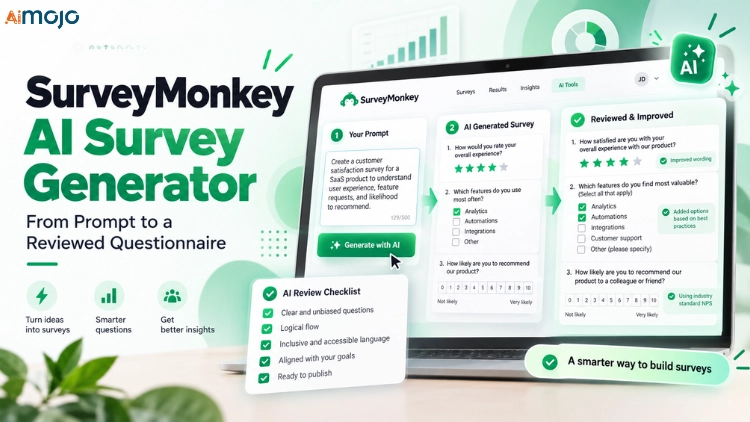
Blank survey pages kill momentum. Ten minutes in, most people have three questions, two of them leading, and no clue about answer scales.
Az SurveyMonkey AI felmérésgenerátor solves the blank page in under a minute. Type a goal, paste an old draft, or ask Claude and ChatGPT to build one inside your account.
Speed is only half the story, though. The real value sits in a review layer with Survey Score completion predictions, Answer Genius scales, chat edits and bias tips.
Below, we break down every entry point, hard limit, prompt formula and review check. Your next questionnaire goes out clean, not just quick.
Mojo's Quick Verdict on SurveyMonkey AI Felmérés generátor
SurveyMonkey's generator is no gimmick. Backed by Azure OpenAI and two decades of survey data, it turns a plain English goal into a usable questionnaire within seconds.
Where it truly shines is after generation. Survey Score, Answer Genius and chat edits catch problems a raw chatbot draft never flags.
Five Entry Points Into SurveyMonkey's AI Survey Builder
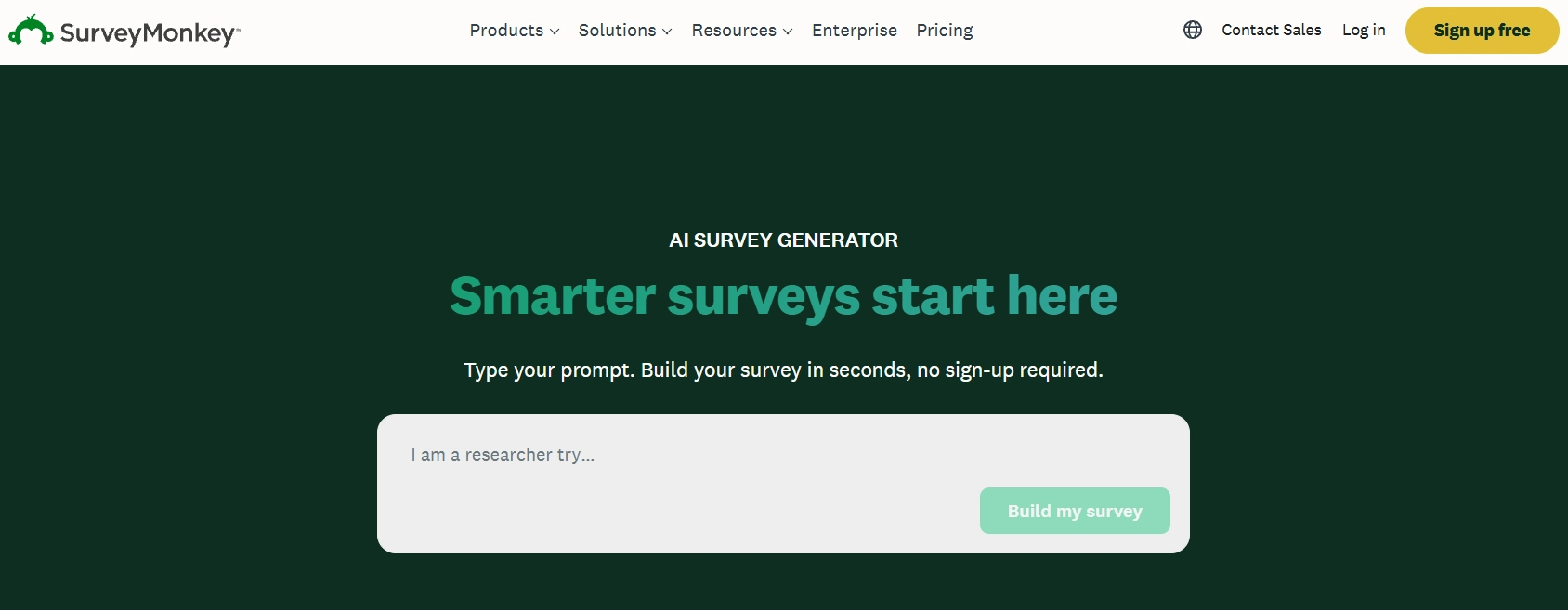
SurveyMonkey no longer hides AI behind a single button. Drafting now starts from five different places, each built around a different kind of input.
Picking the right door saves real time. A rough Word draft needs a different route than a fresh idea typed on your phone.
| Belépési pont | What You Feed It | Ideális használat | Kulcskorlát |
|---|---|---|---|
| Építs vele AI (Create survey menu) | Typed prompt up to 50,000 characters | Fresh surveys from a clear goal | 25 prompts per hour |
| Start with an idea (Home) | Short idea or rough pasted draft | Quick surveys with few questions | Quick editor built for 10 questions or fewer |
| Import with AI | Questions pasted from Docs, Word or email | Rescuing drafts written elsewhere | 50 imports per month, no logic carried over |
| SurveyMonkey mobile app | Typed or spoken prompt | Drafting surveys on the go | Voice converted to text by your phone's speech engine |
| Claude and ChatGPT connectors | Természetes nyelvű csevegés | Building without leaving your AI helyettes | Account data must sit in a US data center |
Every route ends at the same checkpoint, a draft you still need to review. Treat each output as a strong first version, never a finished survey.
Építs vele AI Specs, Limits and Guardrails Worth Knowing
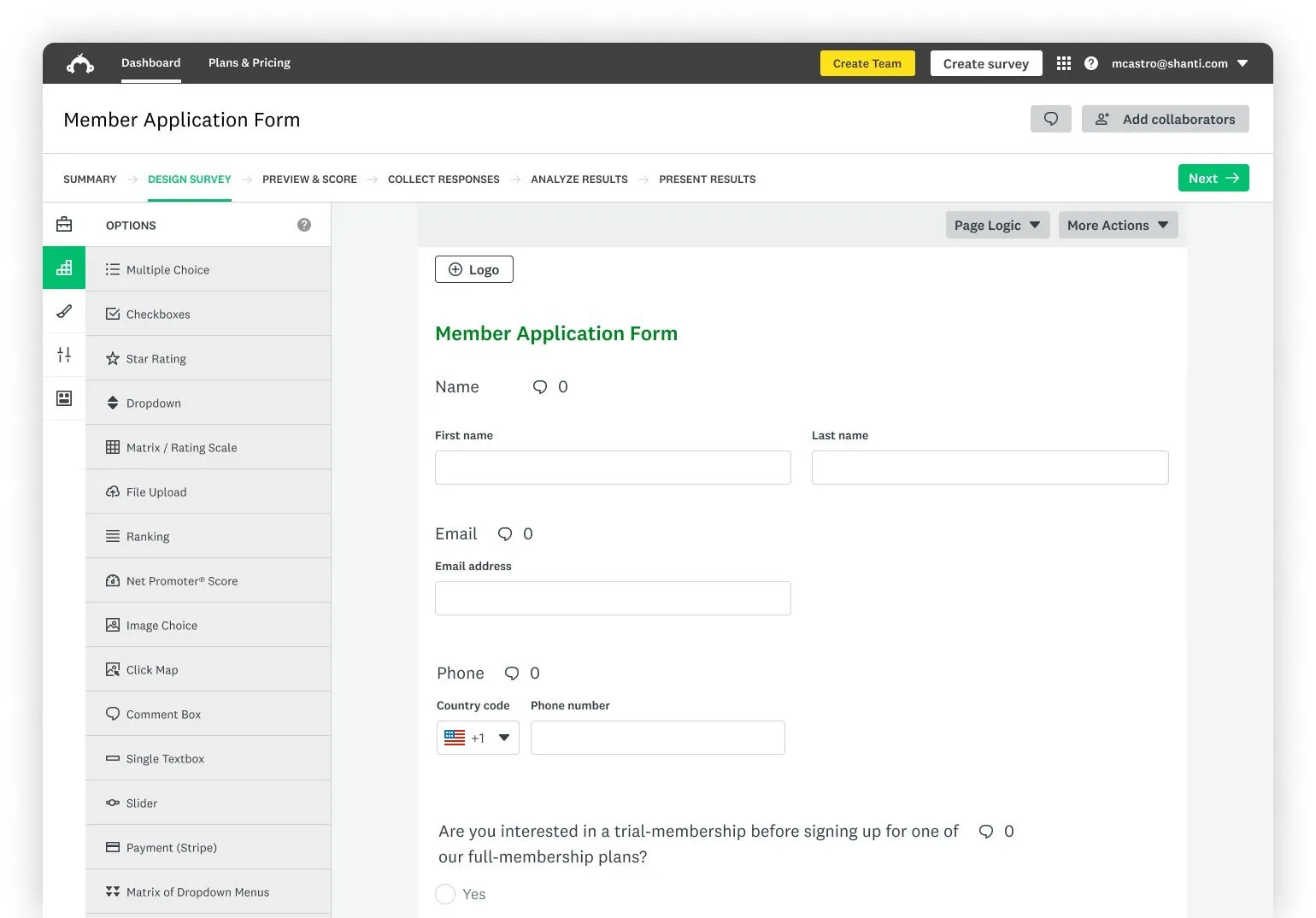
Before typing a single prompt, learn the rules of the sandbox. A few hard limits shape how you write, retry and share prompts.
| Leírás | Részlet |
|---|---|
| AI motor | Azure OpenAI service and OpenAI modellek |
| Maximum prompt length | 50,000 karakterek |
| Generation cap | 25 AI survey prompts per hour, lower before sign in |
| Elérhetőség: | Select customers in OpenAI támogatott régiók |
| Unsafe prompt penalty | Error message or AI generation lockout for up to an hour |
| Modellképzés | Prompts and survey data never train OpenAI or Azure OpenAI modellek |
| Voice prompts on mobile | Audio is never stored, only the transcribed text |
Question Types the Generator Can Produce
Építs vele AI pulls from a fixed set of formats. Knowing them upfront stops you from requesting something the model simply cannot build.
Need a slider, file upload or another format? Add those manually once the draft opens inside the editor.
One plan catch matters here. If a draft includes paid question types, you either upgrade or remove those questions before sending.
A 50,000 character ceiling is generous. Entire research briefs, interview notes or product requirement docs fit comfortably, so give the model real context.
The Prompt Formula Behind Sharper Survey Drafts
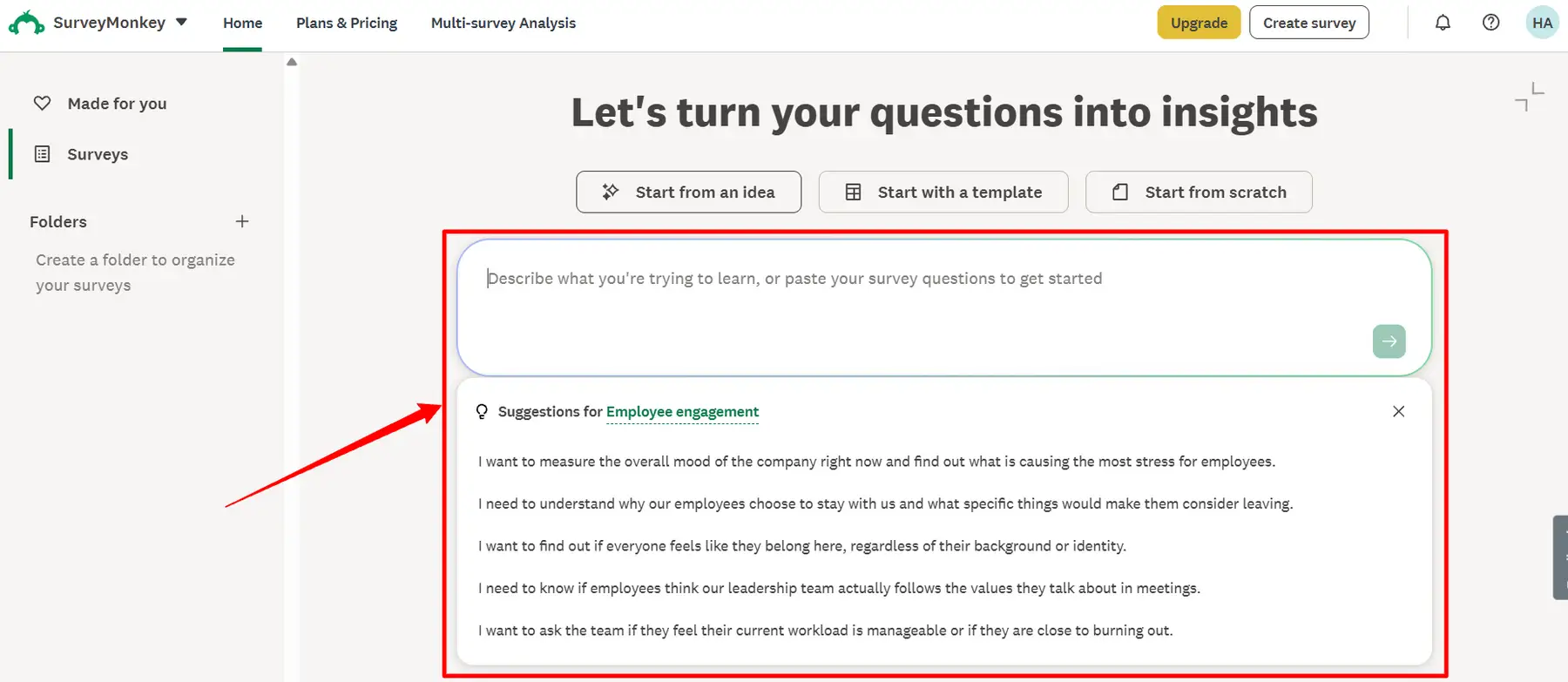
Vague prompts produce vague surveys. Strong prompts share five ingredients, and missing even one shows up in the draft.
Weak Prompt vs Strong Prompt
Here is a prompt most people type on day one.
Make a customer satisfaction survey.You get a generic CSAT template. Nothing wrong with it, nothing useful either.
Now compare a prompt loaded with real context.
I lead customer success at a B2B project tracking SaaS company.

Build a survey for customers who renewed in the last 90 days.

The goal is to learn which features drove renewal and what nearly made them churn.

Include one NPS question, one ranking question covering 6 core features,

and two open ended questions. Capture company size and job role.

Keep it under 10 questions with a friendly but professional tone.
Audience, decision, formats, length and tone all arrive in one shot. The model has nothing left to guess.
Personally, I always add a hard question cap. Without one, length is left to chance, and longer surveys usually see lower completion.
Retrying Prompts Without Burning Your Hourly Cap
With 25 prompts per hour, endless regeneration is off the table. Edit the prompt itself instead of hitting retry blindly.
Step by Step Walkthrough From Prompt to Published Questionnaire
The full journey takes minutes, not hours. Here is the exact path inside the web app.
- Open the creator: Log in, click Create survey and pick Build with AI. Home also works through Start with an idea.

- Write or pick a prompt: Choose a sample prompt or write your own with the formula above.
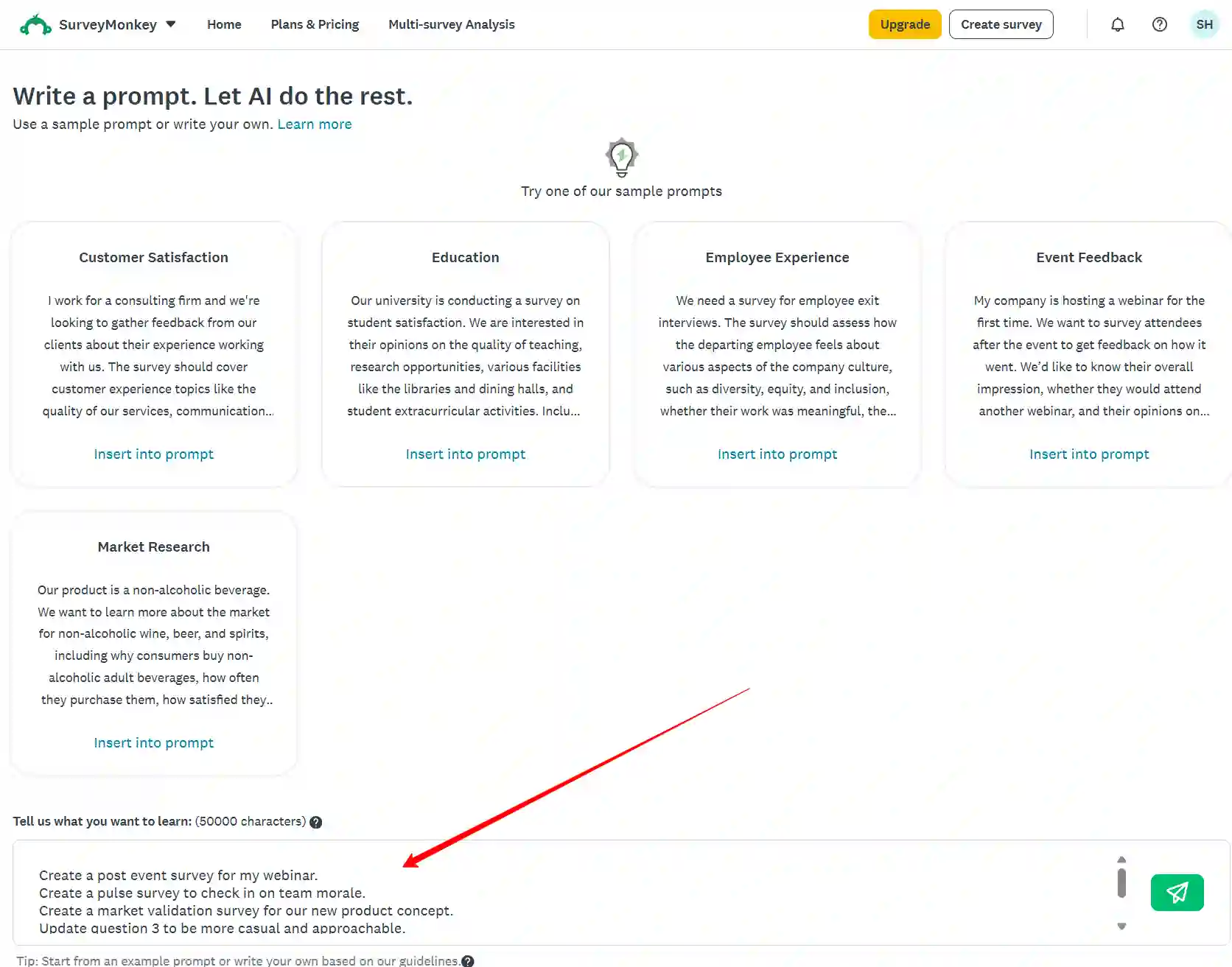
- Generate and preview: Submit the prompt and scan every generated question carefully.
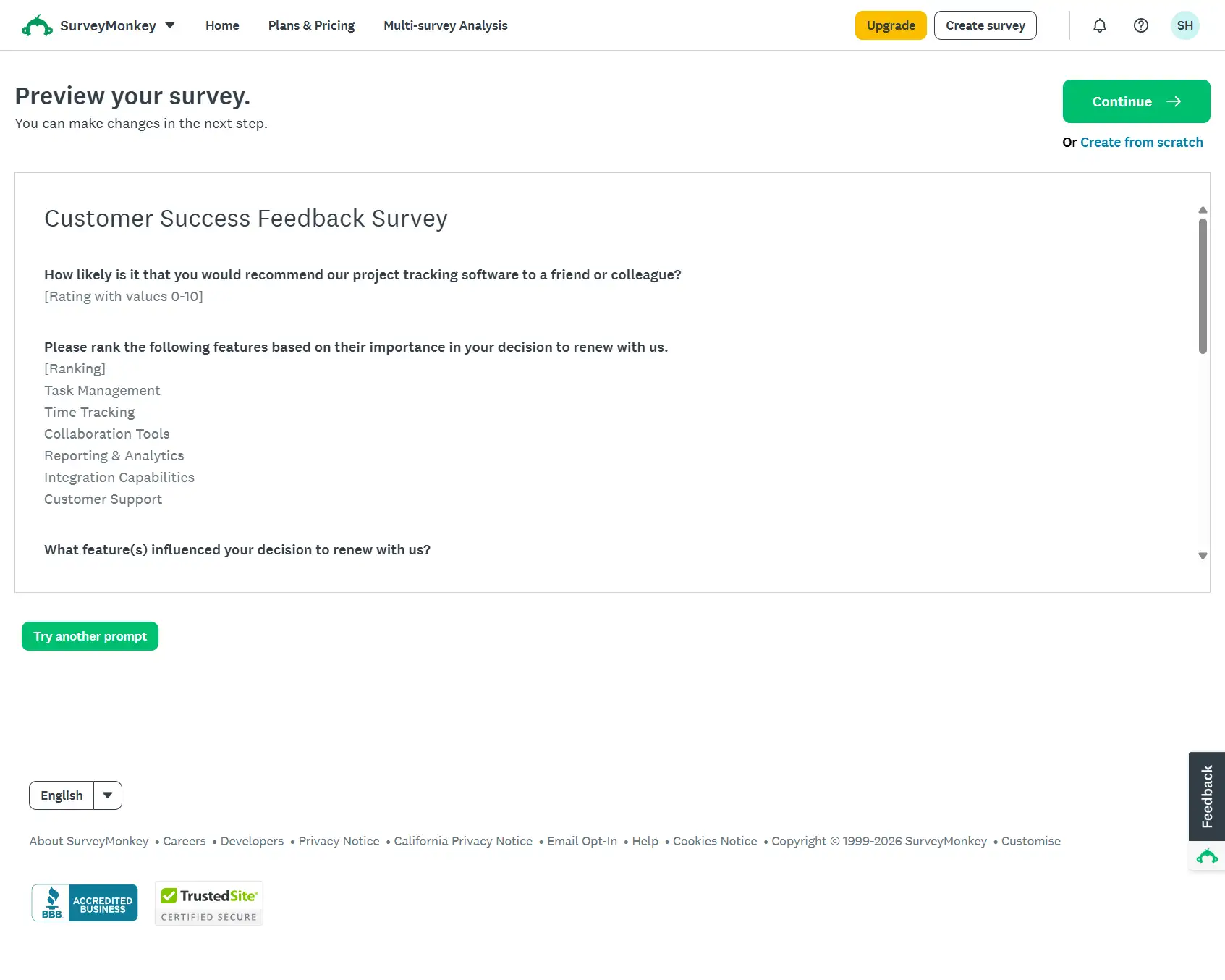
- Decide on the draft: Hit Continue to edit, choose Try another prompt, or switch creation methods.
- Refine in the editor: Fix wording, add missing question types and mark required questions.
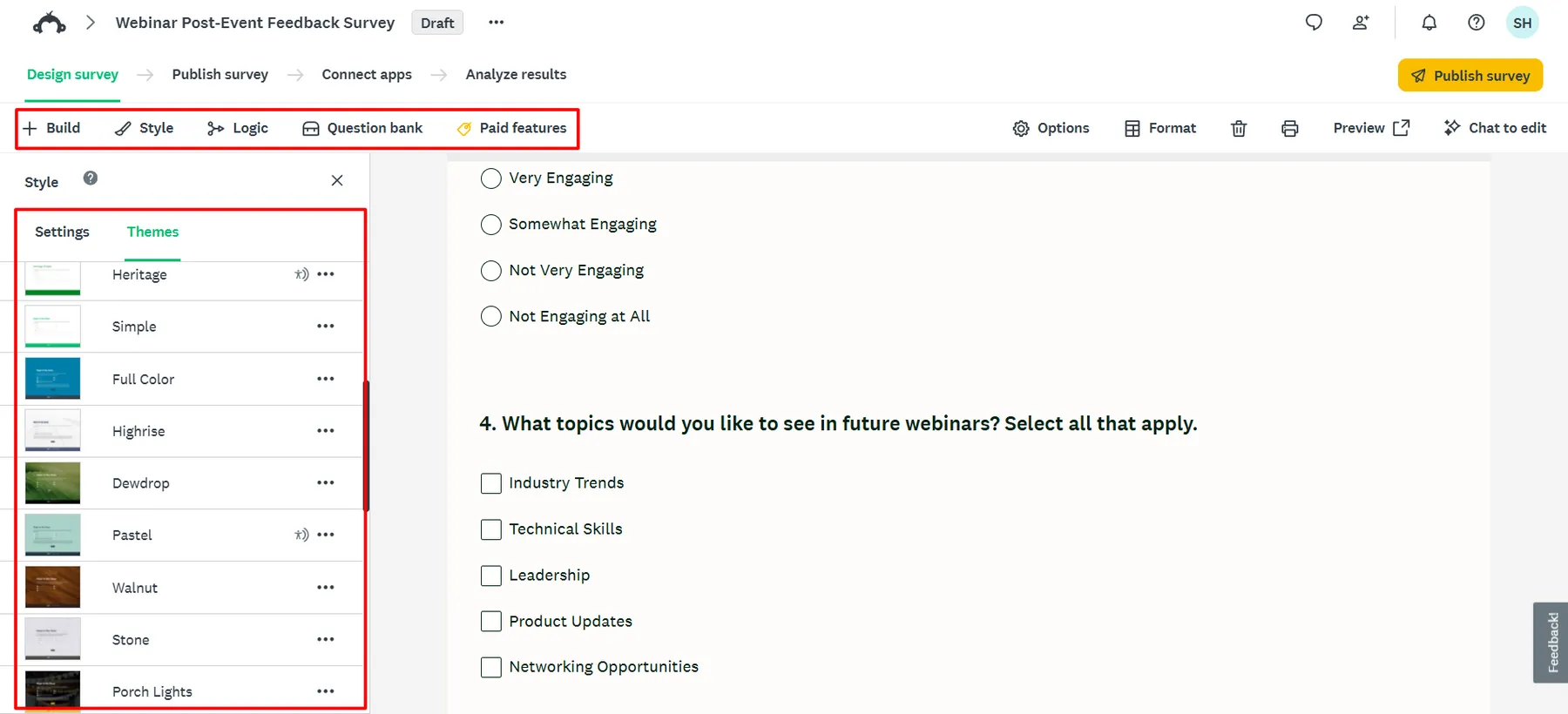
- Add logic and branding: Apply skip logic, then upload a logo to generate a matching theme.
- Score and test: Open Preview, check Survey Score, fix flagged issues and test each device mode.
- közzététele: Hozzon létre egy web link or another collector and send the survey out.
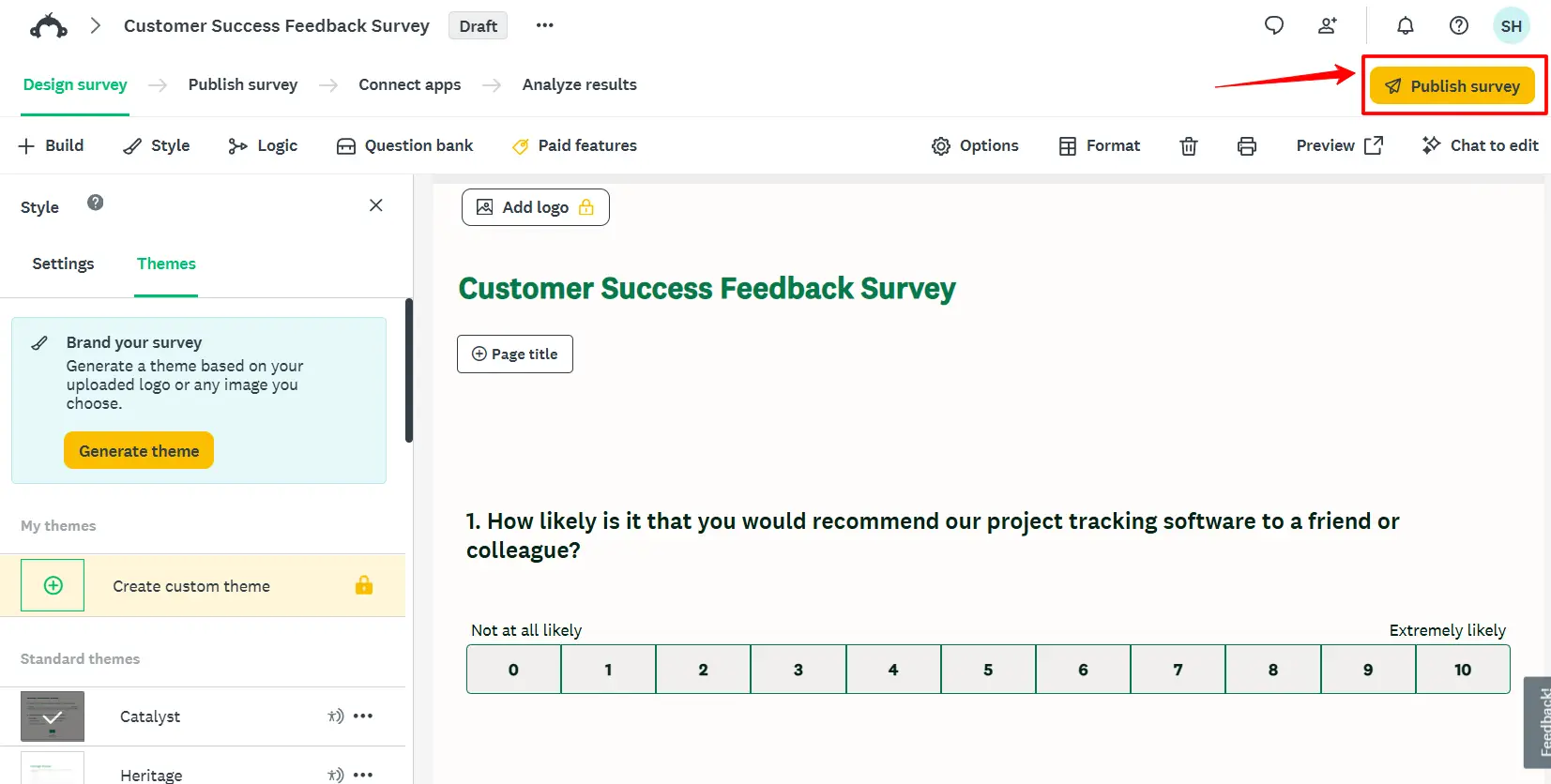
On mobile, the flow stays almost identical. You can dictate the prompt instead of typing, which helps when ideas strike between meetings.
Survey Score, Answer Genius and the Built In Review Layer
Generation grabs headlines, but review is where SurveyMonkey separates itself. Several gépi tanulás checks sit between your draft and your audience.
Reading Your Survey Score Before Launch
Open Preview and a Survey Genius banner appears at the bottom. Click View tips to expand a side panel with issues, tips and predictions.
Scores lean on kérdőíves kutatás around question count, question type order and question length. Edit, rescore, and watch both predictions shift.
Following recommendations stays optional. Still, a Critical Issues label deserves attention before a single respondent sees your link.
Answer Genius for Ready Made Answer Scales
Writing balanced answer scales by hand invites bias. Answer Genius fills in research backed choices the moment you pick an answer type.
Typing an answer choice that matches a predefined answer bank set also triggers Answer Genius. One catch stands out, though, since only English language surveys qualify.
Question Type Prediction While You Type
Adding questions manually after generation? SurveyMonkey suggests a format as you type, such as multiple choice, ranking or értékelési skála.
Accept the suggestion, or override it when your analysis plan needs a different format.
| Review Tool | Mit ellenőriz | Hol találod meg | Korlátozás |
|---|---|---|---|
| Felmérési pontszám | Structure, length and question order | Bottom banner in Preview, then View tips | Predictions, not guarantees |
| Válasz Genius | Balanced answer choices and scales | Select Type dropdown in Design Survey | English surveys only |
| Kérdéstípus előrejelzés | Best format per question | Question editor while typing | Suggestions only |
| AI Felmérési tippek | Potential bias and structural issues | Survey builder | Still needs human judgment |
| Előnézeti módok | Logic errors and rendering across devices | Preview survey | Manuális tesztelés szükséges |
Your Own Human Review Pass
Machine checks miss üzleti kontextus. Before publishing, I go through four quick checks myself.
Sharing the draft with a teammate for a test round helps too. Complex, logic heavy surveys benefit most from a second pair of eyes.
Chat Based Editing With SurveyMonkey AI
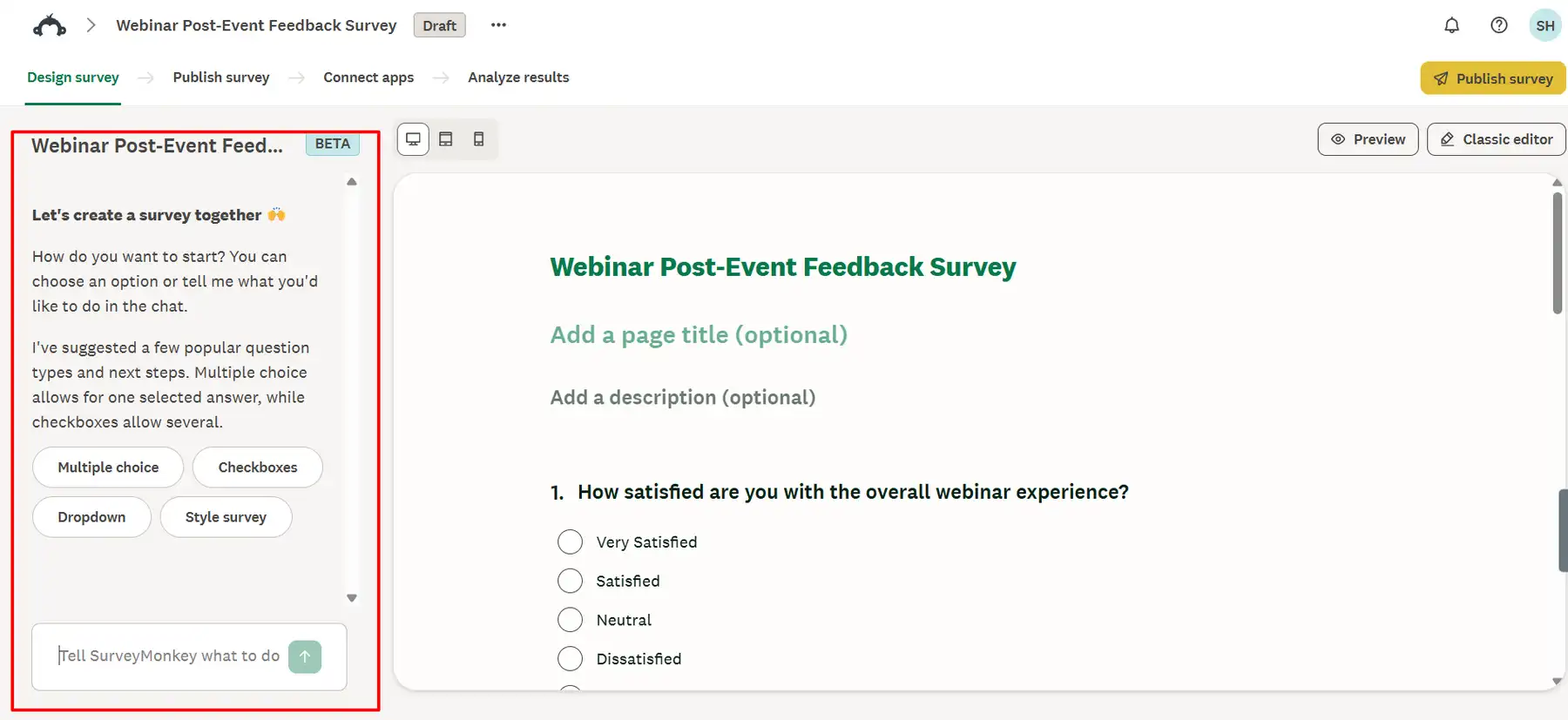
New in 2026, SurveyMonkey AI adds a chat panel inside the builder. Rather than pointing you toward settings, it makes each edit itself.
Updates appear in real time. You watch every change land as the conversation moves.
Chat Commands Worth Trying
Adding a logo or a new multiple choice question works through chat too. Grabbing a share link without leaving the conversation is a quietly brilliant touch.
Availability is narrower than Build with AI. Chat editing covers English users on US and Canadian adatközpontok, and may not appear on every account yet.
Users of the Home flow get a lighter version. A one click tone adjustment rewrites the whole survey voice to match your audience.
Import with AI for Drafts Stuck in Docs, Word and Email
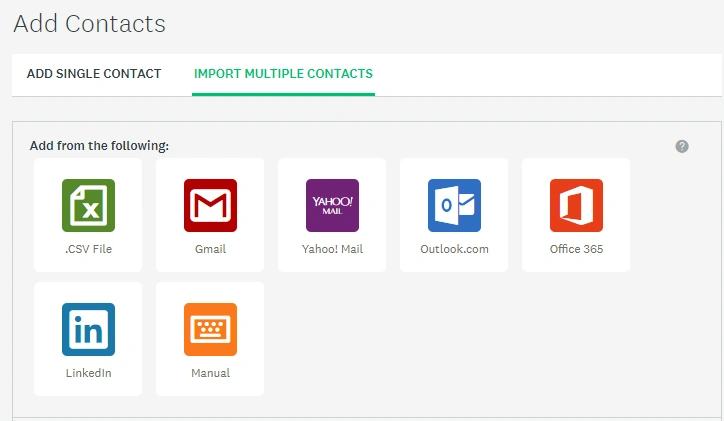
Plenty of teams already have questions sitting inside a Google Doc. Import with AI converts pasted text into a structured survey with detected question types.
Converting a Pasted Draft in Four Moves
- Click Create survey and choose Paste your content.
- Click Use AI to agree to AI based creation.
- Paste your draft and hit Create survey.
- Review question types, then add logic and design elements.
Activation sticks until you clear browser data. On a new laptop or phone, enable the option again.
What Survives the Import and What Gets Lost
- Converted. Multiple Choice, Checkbox, Single Textbox, Comment Box, Matrix/Rating Scale and Text.
- Leesett. Logic, page breaks, titles, page descriptions, images, videos and text formatting.
- Usage cap. Up to 50 pasted surveys per month.
Strip names and personal details first. Pasted text travels to OpenAI or Azure OpenAI with an encrypted user ID for structure extraction.
Imports can contain inaccuracies, so double check every question type. A rating scale silently becoming a text box ruins your charts later.
Building Questionnaires From Claude and ChatGPT Through MCP
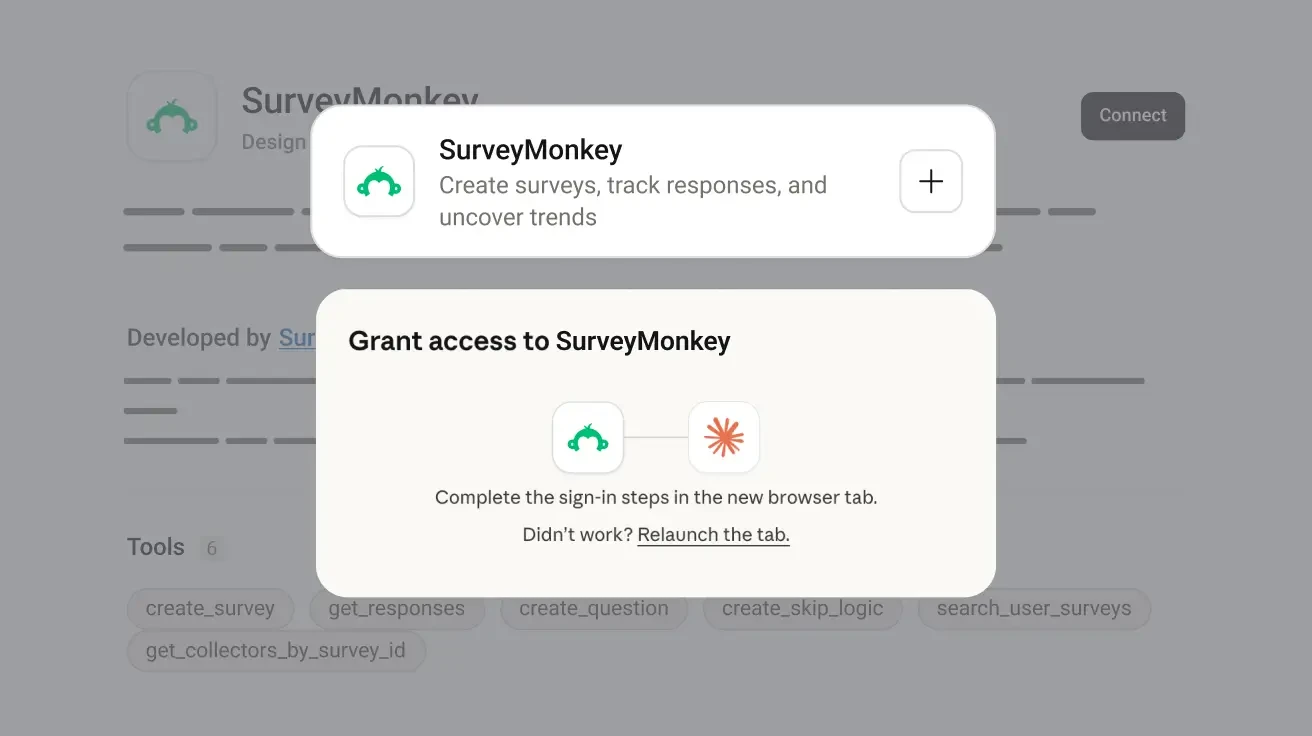
Here is where things get exciting for AI first teams. SurveyMonkey now plugs straight into Claude and ChatGPT through the Model Context Protocol (MCP).
You type a request in chat, and a real survey appears inside your SurveyMonkey account.
What the Connectors Can Actually Do
Claude may ask follow up questions about your goals before drafting. Answer them properly, since richer answers mean a sharper first draft.
Követelmények és korlátozások
Starter Prompts for Chat Assistants
Create a post event survey for my webinar.

Create a pulse survey to check in on team morale.

Create a market validation survey for our new product concept.

Update question 3 to be more casual and approachable.

Give me a shareable link for my pulse survey.
Plan, seat and role can still limit connector output. Full response data and fizetős funkciók may need an upgrade.
Need to cut access later? Open My Account, go to Linked Accounts, find SurveyMonkey MCP Server and select Unlink.
Branded Survey Themes Generated From a Single Logo
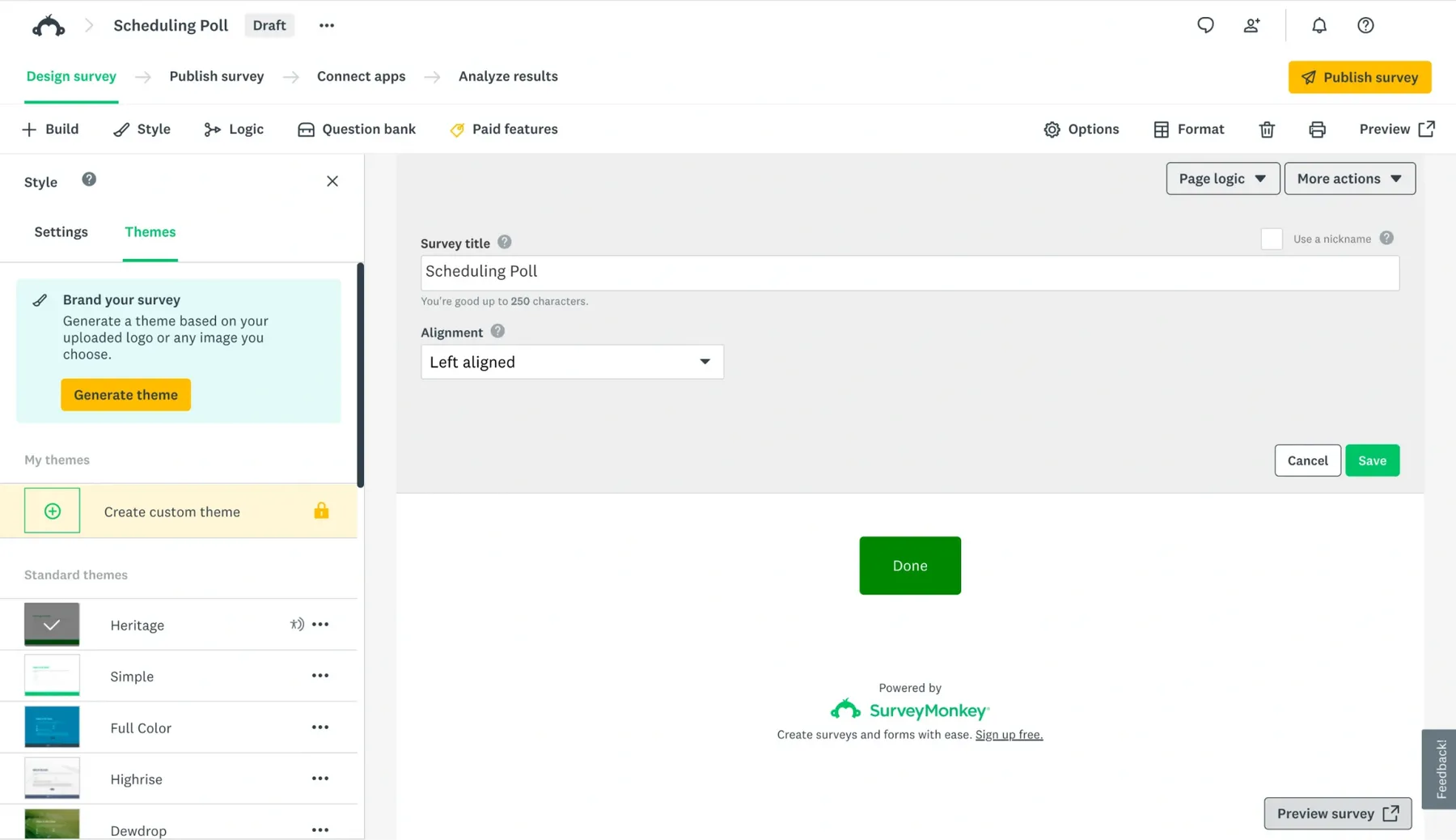
A reviewed questionnaire still needs to look trustworthy. Upload a logo or image, and AI builds a matching theme from your colors in one click.
AI survey theme generation sits on Advantage, Premier, Team and Enterprise plans. Curated themes inside the quick editor offer a fast alternative.
Branding matters more than most teams expect. A survey wearing your logo feels safer to click than a plain link from an unknown sender.
Honest Gaps in SurveyMonkey's AI Survey Builder
Nem AI survey maker is perfect, and SurveyMonkey has clear rough edges. Knowing them early saves frustration later.
None of these gaps are deal breakers. They simply confirm what we keep repeating at AIMOJO, an AI draft still needs a human editor.
Quick Answers on SurveyMonkey's AI Felmérés generátor
Is the SurveyMonkey AI survey generator available on every plan?
Build with AI, AI import, connectors, question type prediction and Answer Genius appear across all plans. Regional availability and paid question types still apply.
Does SurveyMonkey train AI models on survey prompts?
Prompts and data from Build with AI never train OpenAI or Azure OpenAI modellek.
Can a PDF or Word file be uploaded directly?
Not as a file. Copy text from Docs, Word or email, then paste it into Import with AI.
Which languages does the AI survey builder support?
Építs vele AI launched with support for 50+ languages, and connectors follow your assistant's languages. Answer Genius and chat editing remain English only.
Final Word From the AIMOJO Desk
Drafting a survey used to eat an afternoon. Now a sharp prompt gets you a structured questionnaire before your coffee cools.
Still, speed was never the hard part of survey design. Asking the right questions, in the right order, with fair answer scales, is where most surveys quietly fail.
SurveyMonkey gets this. Build with AI handles the first draft, while Survey Score, Answer Genius and chat edits push that draft toward something worth sending.
Claude and ChatGPT connectors push things further. Surveys now live inside the same chat window where your team already plans, writes and analyzes.
AIMOJO's advice is simple: Write prompts with real context, respect the hourly cap, and never skip the Preview score before hitting publish.
Kezel AI as your fastest junior researcher, not your final approver. Do that, and every survey you send will earn better data and better decisions.
Az AiMojo ajánlása:


 BÓNUSZ: Szerezd meg a 200 dolláros "AI „Mastery Toolkit” INGYENES regisztrációval!