I've tested dozens of image editors professionally, focusing on background removal for photography projects. As someone who works with visuals daily, I understand the frustration of jagged edges, lost details, and slow editing.
Accuracy matters under tight deadlines, and even the most creative projects can stall when erasing backgrounds pixel by pixel. My experience lets you avoid trial-and-error tools and focus on efficient results. After extensive testing, I've compared multiple transparent background maker tools for speed, precision, and flexibility.
Many degrade image quality or are sluggish. A few stood out for professional workflows, delivering clean, fast results. These eight recommended tools help photographers and creators streamline editing while preserving visual integrity, with some offering AI-assisted enhancements for even faster processing.
Key Findings
As a professional image editor and background removal reviewer, I've spent years testing the most effective tools for achieving crisp, transparent images quickly. Below is a curated list of the top eight platforms for 2026—each combines intuitive workflows, AI-assisted features, and time-saving functions to help you produce polished, professional-quality images efficiently.
CapCut – Best for professional creators needing a powerful photo editor. AI-driven background removal, multi-format export, and edge smoothing make complex edits effortless.
PhotoScape X – Best for quick batch background removal. Offers automated selection, smart masking, and rapid export for large sets of images.
GIMP – Best for free and open-source editing. Extensive manual controls, customizable brushes, and flexible layer management deliver professional results at no cost.
PhotoDiva – Best for portrait background cleanup. Facial-aware AI, smooth edge detection, and portrait-specific presets simplify retouching and background isolation.
inPixio Remove Background Pro – Best for simple transparent backgrounds. Smart subject detection, one-click removal, and easy export streamline everyday editing tasks.
Paint.NET – Best for lightweight image editing. Fast performance, layer support, and simple selection tools make it ideal for quick transparency fixes.
PhotoDirector 365 – Best for AI-powered background editing. Advanced subject recognition, scene replacement, and automated edge refinement accelerate complex edits.
Corel AfterShot Pro – Best for RAW image background cleanup. Non-destructive workflow, batch processing, and precise masking ensure high-quality transparency for professional photographers.
These tools cover a wide range of needs—from fast, simple editors to AI-enhanced platforms for high-volume image processing. Whether you're a beginner looking for straightforward solutions or a professional seeking precise, scalable control, these platforms ensure your images achieve clean, polished results in 2026.
How I Analyze the Top Transparent Background Maker Tools for 2026
Having worked professionally with images and digital visuals for many years, I've tested dozens of background removal tools. My focus has always been on platforms that genuinely save time, maintain image quality, and simplify complex edits without adding unnecessary steps. I select software not only for immediate use but also for their ability to support growing skill levels and diverse creative projects.
When evaluating the best transparent background maker tools, I look for:
User-friendly interfaces that are accessible to beginners yet flexible for pros
Accurate background removal without compromising edges or fine details
AI-assisted features that reduce repetitive manual work
Stability and responsiveness even with large or high-resolution images
The aim is to make background removal and photo cleanup smooth and efficient. I want tools that allow me to focus on creative decisions, not tedious pixel-level corrections. Each software on this list strikes a balance between automation and control.
They handle complex subjects, provide multi-format export options, and integrate well into larger editing workflows. From marketing graphics to e-commerce product images, these platforms remain practical for any creator.
Even after extensive professional use, I consistently return to these tools because they streamline repetitive tasks, allow me to experiment with AI-powered enhancements, and reliably deliver sharp, clean, and polished results. They aren't just fast—they let me maintain creative quality and precision at every step.
Top 8 Transparent Background Maker Softwares in 2026
1. CapCut
CapCut is a full-fledged editing solution that is designed to be precise and fast. Its transparent background maker feature is one of the most advanced tools for creators seeking effortless image cleanup. It is meant to work with professional-level visuals, allowing image backgrounds to be removed and replaced without a reduction in the quality.
Users can apply CapCut's AI background generator to automatically identify and separate subjects from their surroundings, delivering clean transparent layers within seconds.
Advantages
Ensures flawless transparency without visible cut marks.
Speeds up editing for professional creators and designers.
Integrates well with multiple design workflows.
Offers scene replacement with natural or creative settings.
Provides reliable AI background generator support.
Disadvantage
Some features require a Pro account to access.
Top Capabilities of CapCut
Automated Background Remover: This tool isn't just a simple background eraser. It uses advanced AI precision to instantly detect and remove complex backgrounds while keeping edges clean and natural.\
Multi-format Support: The export process is seamless. You can save images as transparent PNGs directly without needing extra conversions or third-party tools.
Scene Replacement Options: Go beyond plain removals. Swap backgrounds effortlessly with dynamic nature scenes, modern cityscapes, or artistic abstract designs to match your creative vision.
Quality Preservation: Every detail matters. The system ensures fine textures, smooth gradients, and natural transitions remain intact after editing.
Smart Integration Tools: Designed for versatility, this feature supports website design, digital art, marketing visuals, and brand identity projects with ease.
Intuitive Controls: The interface is simple yet powerful, allowing both beginners and professionals to achieve professional-grade edits without a steep learning curve.
👉 Available on: Web, Windows, macOS, iOS, Android
⭐ Overall: 4.9/5
✨ Beginner-Friendly Tools: 4.8/5
💰 Price: Free tier available; Pro starts at $19.99/month
My Experience:
I used CapCut to clean up product photos for an e-commerce project. The AI removed cluttered backgrounds in seconds, preserving hair strands and textures perfectly. I replaced some backgrounds with dynamic cityscapes and nature scenes, which elevated the images instantly.
The multi-format export allowed me to use the files directly on Shopify and social media without extra steps. Even complex 4K images processed quickly without losing detail. The platform consistently made my workflow faster and more precise. I particularly liked how the edge refinement AI handled intricate elements like fur and lace, saving me hours of manual cleanup.
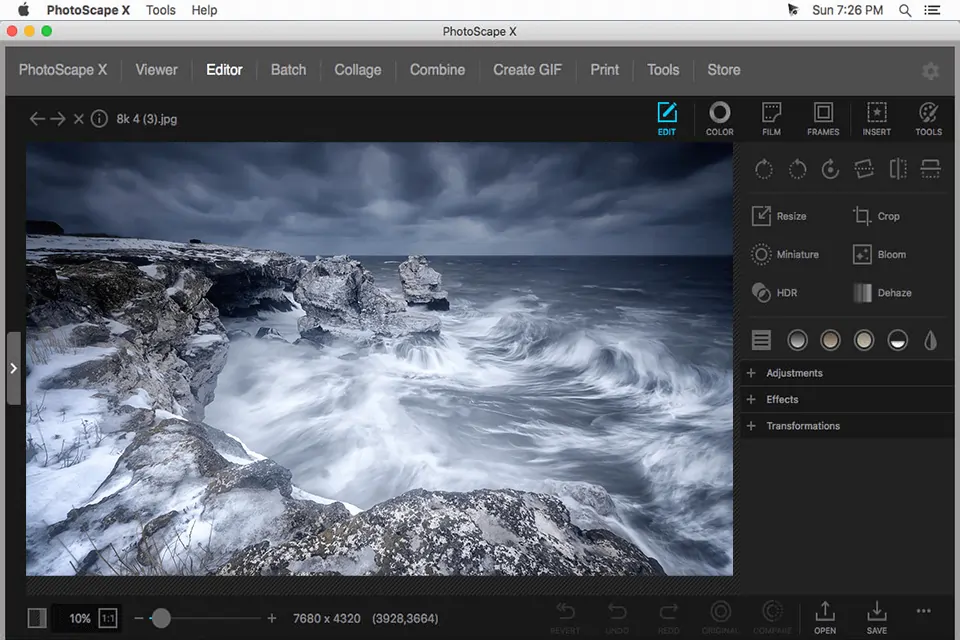
2. PhotoScape X
PhotoScape X is an efficient tool that can be used by people who handle multiple photos at a time. It has a powerful batch editor capable of adding transparency effects to multiple images in a short period of time. It is useful to e-commerce photographers and social media marketers who are regularly involved in product images.
Advantages
Batch processing speeds up transparency edits on multiple images.
Includes lighting and color corrections for polished results.
Simple interface makes routine tasks faster.
Offers multiple export formats for different use cases.
Disadvantage
Accuracy drops slightly on complex backgrounds.
User interface feels outdated compared to newer tools.
Key Features
Batch Background Removal: Edit multiple images in one session.
Smart Masking: Maintains edges while removing backgrounds efficiently.
Color & Lighting Tools: Adjust brightness, contrast, and shadows.
Export Flexibility: Save images in PNG, JPEG, and other formats.
Quick Workflow Shortcuts: Streamlined tools for repetitive tasks.
Available on: Windows, macOS
Overall: 4.3/5
Beginner-Friendly Tools: 4/5
Price: Free; Pro upgrade $39.99 one-time
My Experience:
I frequently used PhotoScape X to edit product photos in bulk. Its batch editor made removing backgrounds from dozens of images fast, and the smart masking kept edges clean. Adjusting color and shadows improved the visual consistency across all products.
While some intricate areas needed minor touch-ups, I appreciated how quickly the platform handled routine edits. The export options let me save images for both web and print, streamlining my workflow significantly. For quick batch tasks, this software saved me a lot of time without compromising overall image quality.
3. GIMP
GIMP is an old-time favorite of free editing programs. It gives the superb manual control of the transparent background. The transparency effects can be created using layer masks, alpha channels and selection tools by users. It is versatile and, therefore, suitable to those users who are familiar with detailed editing workflows.
Advantages
Completely free and open-source software with extensive editing capabilities.
Full manual control over layer masks and alpha channels.
Supports plugins for expanded functionality.
Works across multiple operating systems.
Disadvantage
Steeper learning curve for beginners.
Lacks advanced automation tools for fast background removal.
Key Features
Manual Transparency Control: Precise adjustments via selection tools and layer masks.
Plugin Compatibility: Extend functionality with third-party tools.
Customizable Workspace: Flexible interface for advanced workflows.
Layer Management: Supports multiple layers for non-destructive editing.
Cross-Platform Support: Runs on Windows, macOS, and Linux.
Available on: Windows, macOS, Linux
Overall: 4.1/5
Beginner-Friendly Tools: 3.5/5
Price: Free
My Experience:
I rely on GIMP when I need full control over transparency edits. Using layer masks and alpha channels, I removed backgrounds with meticulous precision. For complex products, I appreciated the manual control to preserve intricate edges and textures.
Installing plugins expanded the software's capabilities, allowing me to automate certain repetitive edits. While it took longer than AI-driven tools, the accuracy is excellent. I found GIMP invaluable for projects where fine-tuning every detail mattered more than speed. It remains a powerful, cost-free option for professionals willing to invest time.
4. PhotoDiva
PhotoDiva is a portrait editing company with a variety of tools that are oriented on human subjects. Its background remover smartly identifies details around hair, clothing, and skin keeping the edges natural. The software also improves facial features and tones and maintains transparency.
Pros
Ideal for portrait edits and human subject isolation.
Maintains natural skin tones while removing backgrounds.
Quick export in transparent PNG format.
Includes retouching tools for blemish and lighting adjustments.
Cons
Less effective on non-portrait images.
Limited batch editing features.
Key Features
AI Hair Detection: Preserves hair and soft edges during removal.
Portrait Retouching Tools: Enhance facial features while isolating background.
Edge Smoothening: Keeps transitions natural around clothing and hair.
Face-aware Automation: Adjusts subject-specific areas automatically.
Available on: Windows
Overall: 4.4/5
Beginner-Friendly Tools: 4.5/5
Price: Free Basic; PRO $29.40 one-time
My Experience:
I tested PhotoDiva on headshots and portrait images. Its AI accurately removed backgrounds without compromising hair or skin details. The retouching tools enhanced facial tones, and I could export clean transparent PNGs in seconds.
For profile images or marketing content featuring people, this software significantly reduced editing time. I particularly liked the face-aware automation, which handled subtle areas I would normally edit manually. While it wasn't ideal for product shots, it became my go-to for portrait-focused projects.
5. inPixio Remove Background Pro
inPixio Remove Background Pro is aimed at providing simple transparency generation without complicated menu choices. Its streamlined design enables users to delete the unwanted backgrounds in a fast way through guided selections. It is aimed at small business owners, marketers, and content creators who prefer to be fast rather than profound.
Drag-and-Drop Workflow: Speeds up image processing.
Smart Subject Detection: AI recognizes foreground accurately.
Quick Export: Save transparent images in common formats.
Available on: Windows, macOS
Overall: 4.2/5
Beginner-Friendly Tools: 4.6/5
Price: Pro $79.99/year
My Experience:
I used inPixio to quickly remove backgrounds from product and social media photos. The drag-and-drop interface made it easy to work efficiently, and the AI accurately identified subjects most of the time. Some detailed edges, like hair or fabric folds, required minor manual adjustments.
Overall, it sped up my workflow for small batches and simple edits. I appreciated the simplicity and speed, especially when I needed transparent images without delving into more complex editing software.
6. Paint.NET
Paint.NET is a small photo editing software that is characterized by simplicity and rapid processing. It also has transparency features via its layer and eraser system which provides the user with a simple method of creating clear backgrounds. Plugins also make it expand its features to suit semi-professional editing needs.
Pros
Lightweight and fast on most systems.
Layer support allows for non-destructive transparency edits.
Supports plugins to expand features.
Simple interface for quick fixes.
Cons
Limited automation for complex backgrounds.
No dedicated AI-powered background tools.
Key Features
Layer Transparency: Easily create transparent layers with basic controls.
Plugin Support: Add new tools for advanced editing.
Eraser & Selection Tools: Manual precision for quick background removal.
Fast Performance: Handles most images smoothly, even on older PCs.
Basic Editing Functions: Crop, resize, and adjust colors.
Available on: Windows
Overall: 4.0/5
Beginner-Friendly Tools: 4.2/5
Price: Free
My Experience:
I use Paint.NET for small projects or quick transparency fixes. Its lightweight design made processing images on an older PC fast and smooth. I manually removed backgrounds using the eraser and selection tools, which was simple but required more time for complex shapes.
Plugins expanded its capabilities slightly, allowing me to enhance some images efficiently. While it lacks AI automation, Paint.NET is excellent for beginners or anyone needing a straightforward tool for quick transparent images without overcomplication.
7. PhotoDirector 365
PhotoDirector 365 is a smart AI-based application that includes automated background recognition and removal. It is a quick way of cleaning up without subject loss. It has powerful editing software that enables making subtle changes, which makes it highly useful to digital creators and marketing specialists.
Pros
AI-powered background recognition for fast edits.
Supports scene replacement and advanced adjustments.
Cloud storage options for collaborative work.
Flexible export formats for diverse projects.
Cons
Interface can feel complex for new users.
Subscription required for ongoing updates.
Key Features
AI Background Removal: Detects subjects and removes backgrounds quickly.
Scene Replacement: Swap backgrounds seamlessly with realistic or creative visuals.
Fine Adjustment Tools: Refine edges, lighting, and textures automatically.
Cloud Integration: Save and access projects across devices.
Multiple Export Options: Export in high-resolution PNG or JPEG.
Available on: Windows, macOS
Overall: 4.5/5
Beginner-Friendly Tools: 4/5
Price: Subscription $39.99/year
My Experience:
I tested PhotoDirector 365 for marketing images and social media posts. Its AI background removal worked reliably, even on moderately complex subjects. I replaced backgrounds with cityscapes and nature scenes quickly, saving time compared to manual editing.
Fine adjustment tools allowed me to refine edges and lighting, producing polished images suitable for branding. The cloud storage helped me manage multiple projects across devices. Although the interface took some learning, the AI-assisted tools consistently accelerated my workflow while maintaining professional-quality results.
8. Corel AfterShot Pro
Corel AfterShot Pro is designed to meet the needs of the professional photographer who works with RAW files. It has powerful adjustment features that enable background isolation and creation of transparent layers in a precise manner. This is especially useful in large and high-resolution photo projects.
Pros
Excellent RAW photo support for professional photographers.
Precise masking and transparency control.
Handles large high-resolution images without lag.
Non-destructive workflow preserves original files.
Cons
Lacks dedicated automatic background remover.
Better suited for advanced users than beginners.
Key Features
RAW Editing Support: Works directly with uncompressed high-resolution files.
Precise Masking Tools: Isolate backgrounds with fine control.
Non-Destructive Workflow: Edit images without altering originals.
Batch Processing: Apply adjustments to multiple files simultaneously.
I used Corel AfterShot Pro to clean up large batches of RAW product images. The precise masking tools allowed me to isolate subjects accurately, maintaining textures and edges. Batch processing helped me handle multiple images efficiently, especially for e-commerce projects.
While there's no automated AI background removal, the manual controls gave me complete flexibility over the results. I appreciated the non-destructive workflow, which ensured the originals stayed intact. This software excels when quality and precision outweigh speed, and it has become my preferred tool for professional-grade RAW editing.
A Simple Guide to Choosing the Right Transparent Background Editor
After years of working with photography and digital visuals, I've learned that picking the right transparent background maker isn't just about finding the fastest remover — it's about choosing a tool that fits your editing rhythm, keeps image quality intact, and reduces repetitive cleanup work.
Through my experience, I've seen how the right software can turn hours of background editing into minutes of efficient precision.
Accuracy and Edge Control: When evaluating tools, focus on how accurately they separate your subject from complex backgrounds. You'll want a remover that preserves hair strands, fabric textures, and soft shadows without leaving rough outlines or visible cut marks.
Ease of Workflow Integration: You should look for a platform that blends easily with your existing design or photography tools. Compatibility with editors like Photoshop, Canva, or Figma can make your post-editing process smoother and faster.
AI Assistance and Automation: The newest background makers use AI to automatically detect subjects, remove cluttered backgrounds, and refine edges. You'll save significant time if the tool's automation actually improves accuracy instead of requiring constant manual corrections.
Batch Processing Power: If you work with multiple photos — such as product images or portraits — you'll need batch background removal. It helps you process dozens of photos at once while maintaining consistent transparency across every image.
Export Flexibility: You should choose a tool that supports key file types like PNG, TIFF, and JPEG with transparent backgrounds. Having these options ensures that your edited images are ready for websites, e-commerce platforms, or marketing visuals without extra conversions.
Performance and Responsiveness: A reliable background remover should handle large, high-resolution images without lag. You'll want one that processes edits quickly while maintaining detail accuracy, especially when deadlines are tight.
Creative Background Replacement: Many modern tools now let you replace removed backgrounds with new ones — from plain colors to realistic scenes. This flexibility helps you enhance your images instantly without opening another editing app.
After testing them all, I realized that choosing the right transparent background maker comes down to how well it aligns with your workflow and creative pace. I always lean toward tools that balance AI precision with user control — making my editing faster, cleaner, and more enjoyable.
Conclusion
Selecting the right transparent background maker depends on workflow, experience, and creative needs. There are those users who are more automation-focused and others who want it to be precise, and manual. Nevertheless, a careful consideration reveals that CapCut is the most balanced option between professionals and amateurs.
Its combination of an intelligent AI background generator, detailed transparency control, and seamless photo editor functionality delivers unmatched results. The option of changing backgrounds on different scenes and making them customizable also enhances the level of creativity.
Other tools are doing great in certain aspects, but none of them equal CapCut in terms of quality, flexibility, and ease of use. CapCut is the best choice when it comes to quick, precise, and visually flawless photo cleaning.
FAQs
What is the best transparent background maker?
CapCut is the top choice, offering AI-driven precision, multi-format export, and professional-grade tools for flawless, fast, and versatile background removal.
What makes CapCut the best transparent background maker for professionals?
CapCut's advanced AI background generator automates complex editing tasks while maintaining detail and precision. It combines powerful transparency control with smooth performance, making it ideal for designers and visual creators.
Which tool supports PNG transparency export for digital projects?
CapCut transparent background maker supports multiple output formats, including PNG, enabling creators to save clean, transparent images for websites, branding, and design work.
Can beginners use CapCut without prior experience in image background removal?
Yes. CapCut's interface is simple and intuitive, allowing beginners to create transparent images without technical knowledge. The automated background remover ensures consistent, high-quality outcomes.
Build, chat with and see your private AI girlfriend, with video messages bundled into every premium plan.
Uncensored 18+ AI companion chat for adults who want full control.
AI Knowledge Foundation That Turns Enterprise Data into Trusted, Auditable Intelligence
Precision AI for Regulated R&D and Enterprise Knowledge Management





 BONUS: Get our $200 “AI Mastery Toolkit” FREE when you sign up!